

In this tutorial we will learn how to use LED Indicator Module using Visuino.
This module is very useful when you need to indicate some status from sensors or other modules.
Watch the video!
Here we are using a module with 6 LEDs, if you will use a module with more LEDs you might need to connect it to other digital pins or use a breadboard
- Arduino UNO or Arduino Mega
- Visuino program: Download Visuino
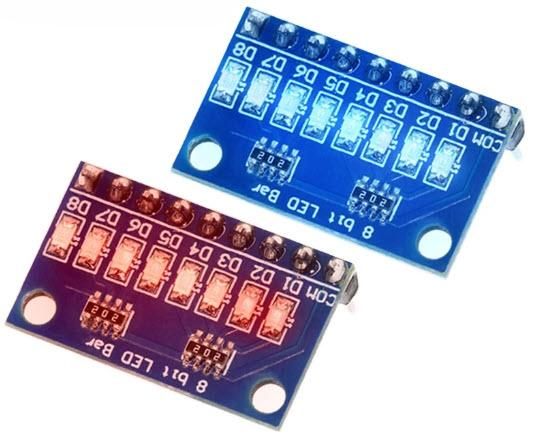
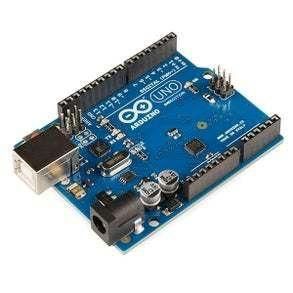
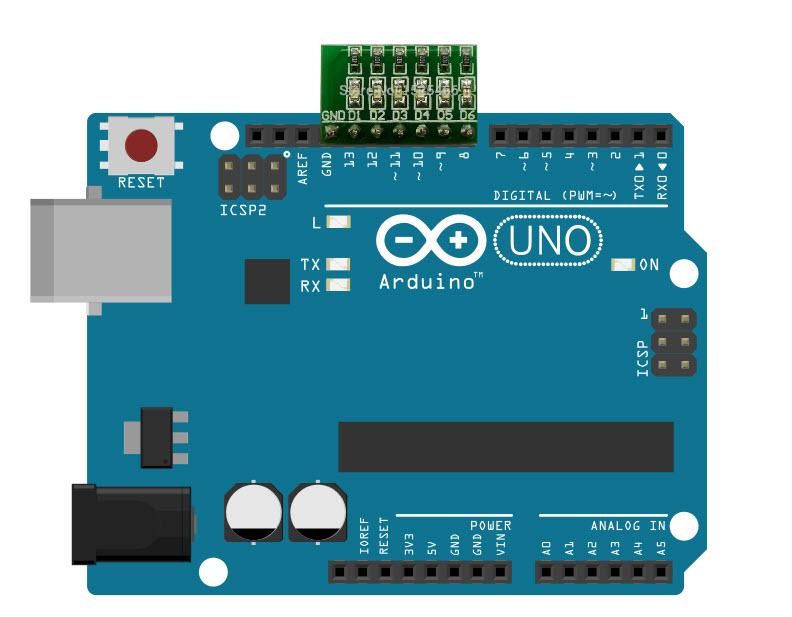
For module with 6 LEDs: Put the module on the Arduino board digital pins [8,9,10,11,12,13,GND]
- D6 > digital pin [8]
- D5 > digital pin [9]
- D4 > digital pin [10]
- D3 > digital pin [11]
- D2 > digital pin [12]
- D1 > digital pin [13]
- GND > pin [GND]
If you are using a module with more LEDs you might need to use other digital pins or connect it to the breadboard.
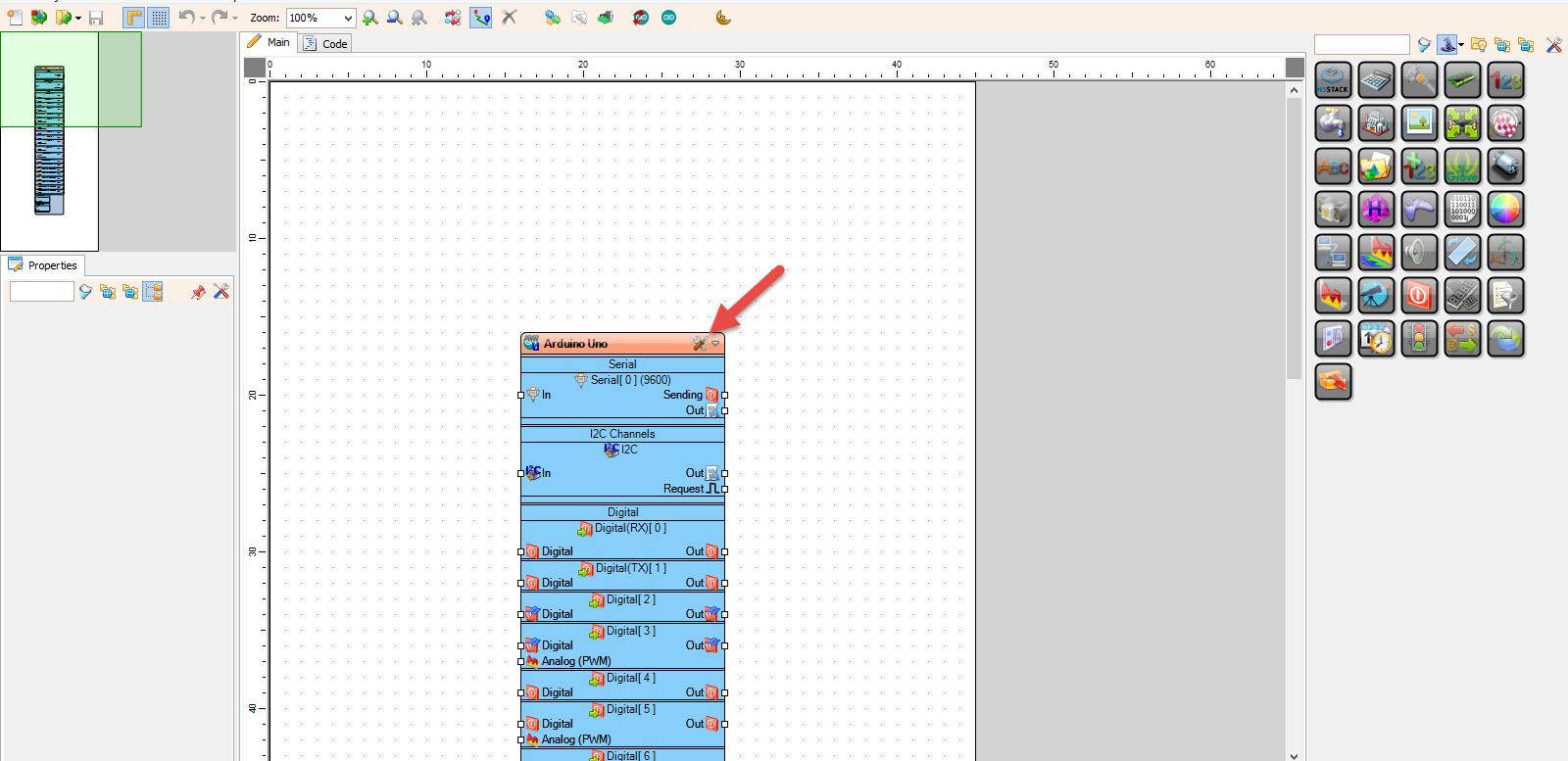
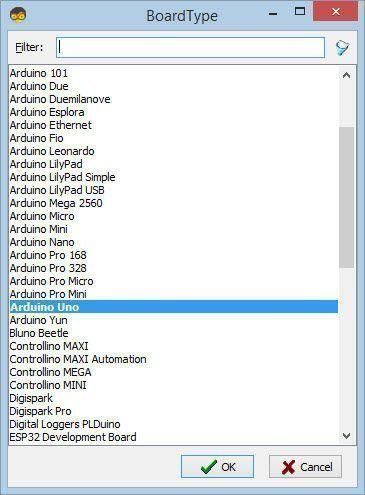
Start Visuino as shown in the first picture Click on the "Tools" button on the Arduino component (Picture 1) in Visuino When the dialog appears, select "Arduino UNO" as shown on Picture 2
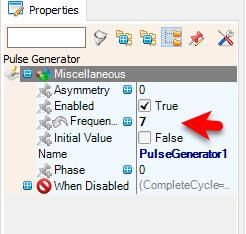
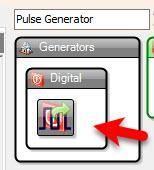
- Add "Pulse Generator" component
- To set the speed of the LEDs, set the "Frequency" in the properties to 7 or any other value you might like
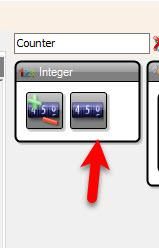
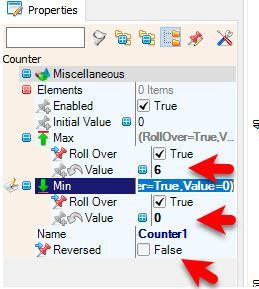
- Add "Counter" component, and in the properties window set "Max" > "Value" to 6 <<Number of LEDs on the module and "Min" > "Value" to 0
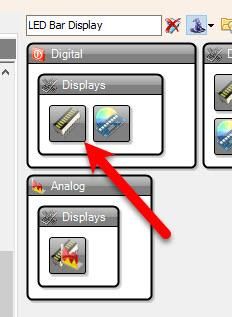
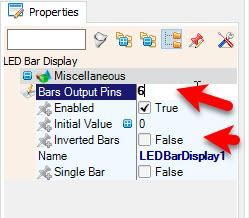
- Add "LED Bar Display" component and in the properties window set "Bars Output Pins" to 6 <<Number of LEDs on the module
To change the LED direction select "Counter1" and in the properties window set "Reversed" to True
or select "LEDBarDisplay1" and in the properties window set "Inverted Bars" to True
Experiment with different combinations.
- Connect "PulseGenerator1" pin [Out] to "Counter1" pin [In]
- Connect "Counter1" pin [Out] to "LEDBarDisplay1" pin [In]
- Connect "LEDBarDisplay1" pin [0] to Arduino digital pin [8]
- Connect "LEDBarDisplay1" pin [1] to Arduino digital pin [9]
- Connect "LEDBarDisplay1" pin [2] to Arduino digital pin [10]
- Connect "LEDBarDisplay1" pin [3] to Arduino digital pin [11]
- Connect "LEDBarDisplay1" pin [4] to Arduino digital pin [12]
- Connect "LEDBarDisplay1" pin [5] to Arduino digital pin [13]


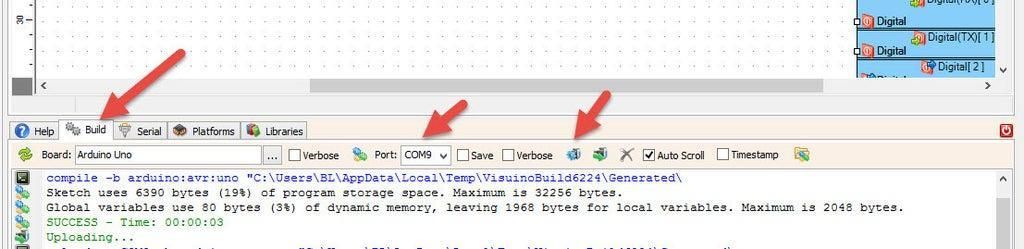
In Visuino, at the bottom click on the "Build" Tab, make sure the correct port is selected, then click on the "Compile/Build and Upload" button.
If you power the Arduino module the LEDs on the indicator module will start to produce different effects.
Congratulations! You have completed your project with Visuino. Also attached is the Visuino project, that I created for this tutorial, you can download it and open it in Visuino: https://www.visuino.com
 led-Light-Effects.zip




