

In this simple tutorial we will learn how to control a 4-wire stepper motor with a joystick using Arduino.
Watch the Video!
Also check out this amazing tutorial: Arduino Nano and Visuino: Control 2 Stepper Motors With Joystick
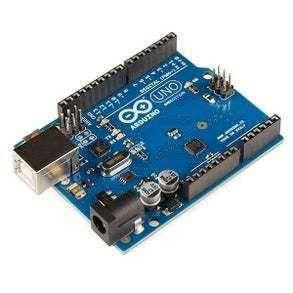
- Arduino UNO (or any other board)
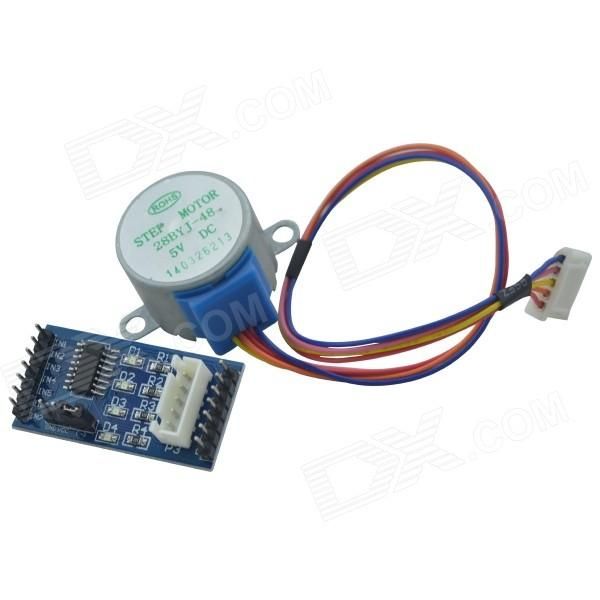
- Stepper motor 28byj-48 & stepper motor driver board
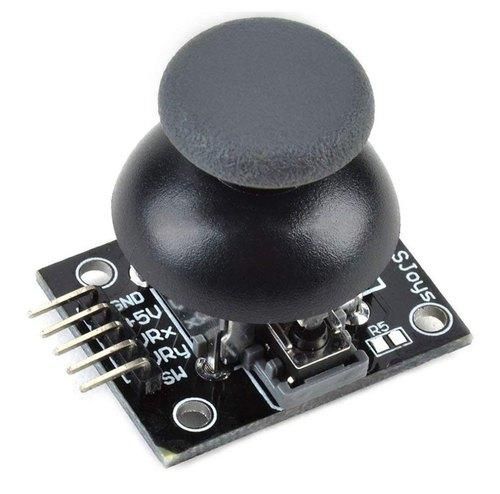
- Analog Joystick module
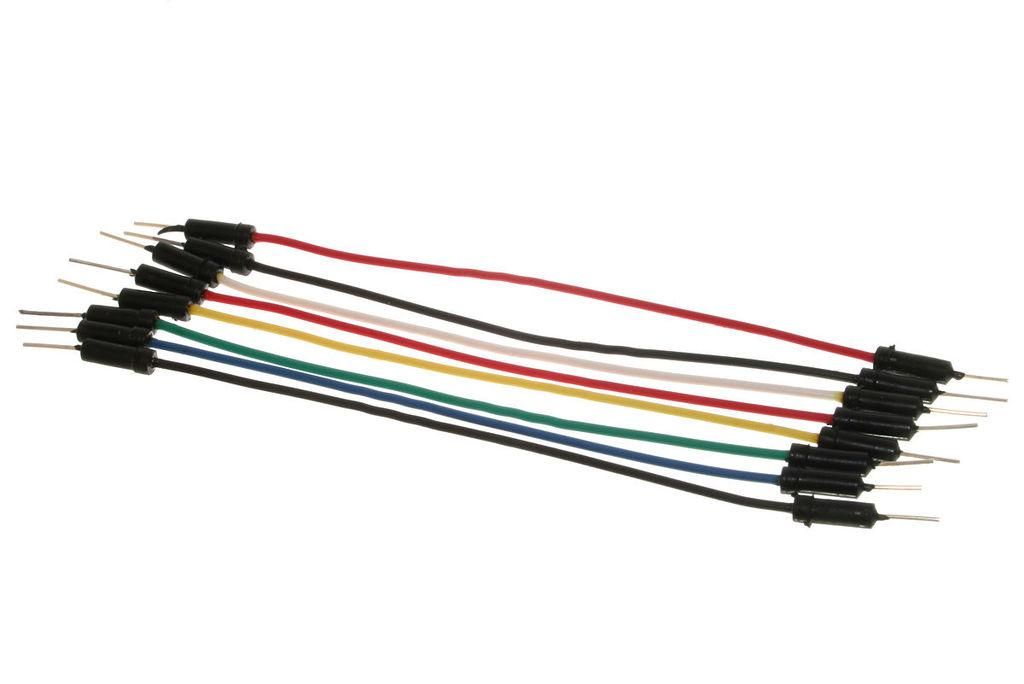
- Jumper wires
- Visuino program: Download Visuino
Thank you PCBWay for supporting this tutorial and helping users learn more about electronics.
NEW! Now you can get Aluminum PCB & FLEX PCB in their Special Offer!
What I like about the PCBWay is that you can get 10 boards for approximately $5 which is really cost effective for professional made boards, not to mention how much time you save!
Go check them out here. They also offer special discounts celebrating their 9th anniversary More info here.


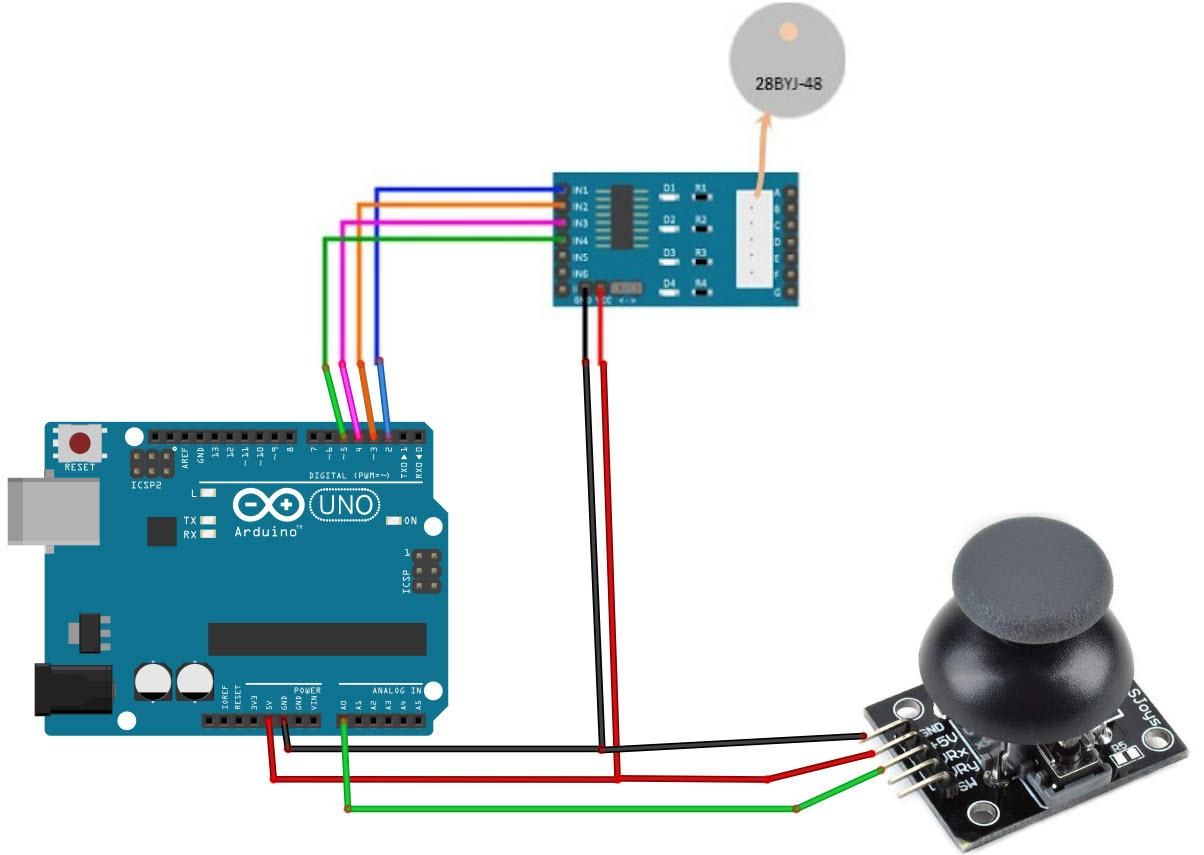
- Connect Arduino pin [5V] to Driver Board pin [VCC]
- Connect Arduino pin [GND] to Driver Board pin [GND]
- Connect Arduino digital pin [2] to Driver Board pin [IN1]
- Connect Arduino digital pin [3] to Driver Board pin [IN2]
- Connect Arduino digital pin [4] to Driver Board pin [IN3]
- Connect Arduino digital pin [5] to Driver Board pin [IN4]
- Connect Arduino pin [5V] to Joystick pin [VCC]
- Connect Arduino pin [GND] to Joystick pin [GND]
- Connect Arduino analog pin [0] to Joystick pin [VRX]
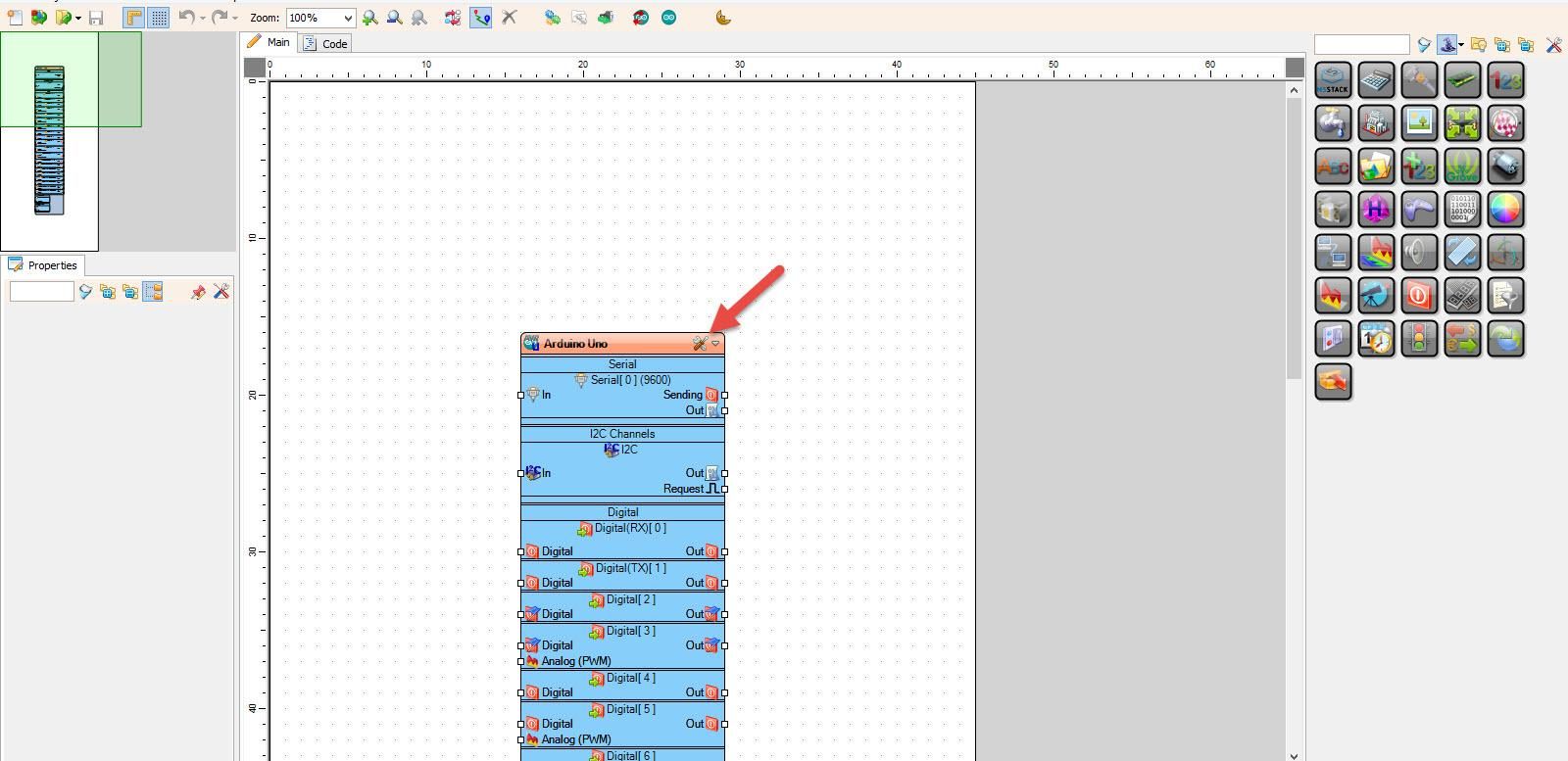
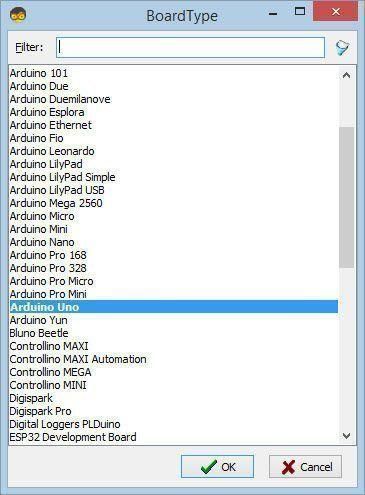
Start Visuino as shown in the first picture Click on the "Tools" button on the Arduino component (Picture 1) in Visuino When the dialog appears, select "Arduino UNO" as shown on Picture 2
- Add "4 Wire Stepper Motor" component
- Add "Joystick" component
- Add "Dead Zone Scaled Analog" component
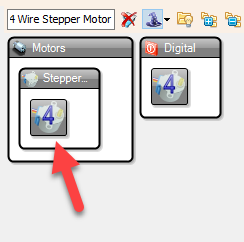
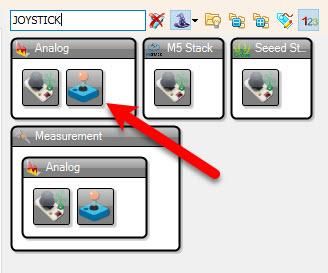
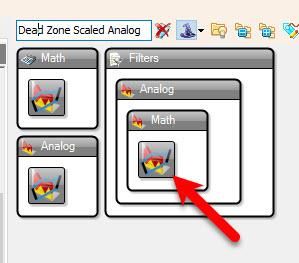
- Select "Stepper1" and in the properties window select "Steps Per Second" and click on the pin Icon and select "Float SinkPin"
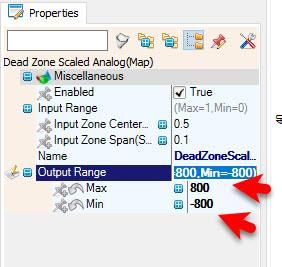
- Select "DeadZoneScaled1" and in the properties window set "Output Range" > "Max" to 800 and "Output Range" > "Min" to -800
- This is the Max speed and you can adjust it to your needs
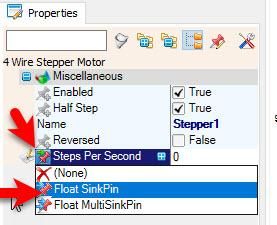
- Connect Arduino Analog pin [0] to "Joystick1" Axis X [In]
- Connect "Joystick1" Axis X [Out] to "DeadZoneScaled1" pin [In]
- Connect "DeadZoneScaled1" pin [Out] to "Stepper1" pin [Steps Per Second]
- Connect "Stepper1" pin [0] to Arduino digital pin [2]
- Connect "Stepper1" pin [1] to Arduino digital pin [3]
- Connect "Stepper1" pin [2] to Arduino digital pin [4]
- Connect "Stepper1" pin [3] to Arduino digital pin [5]
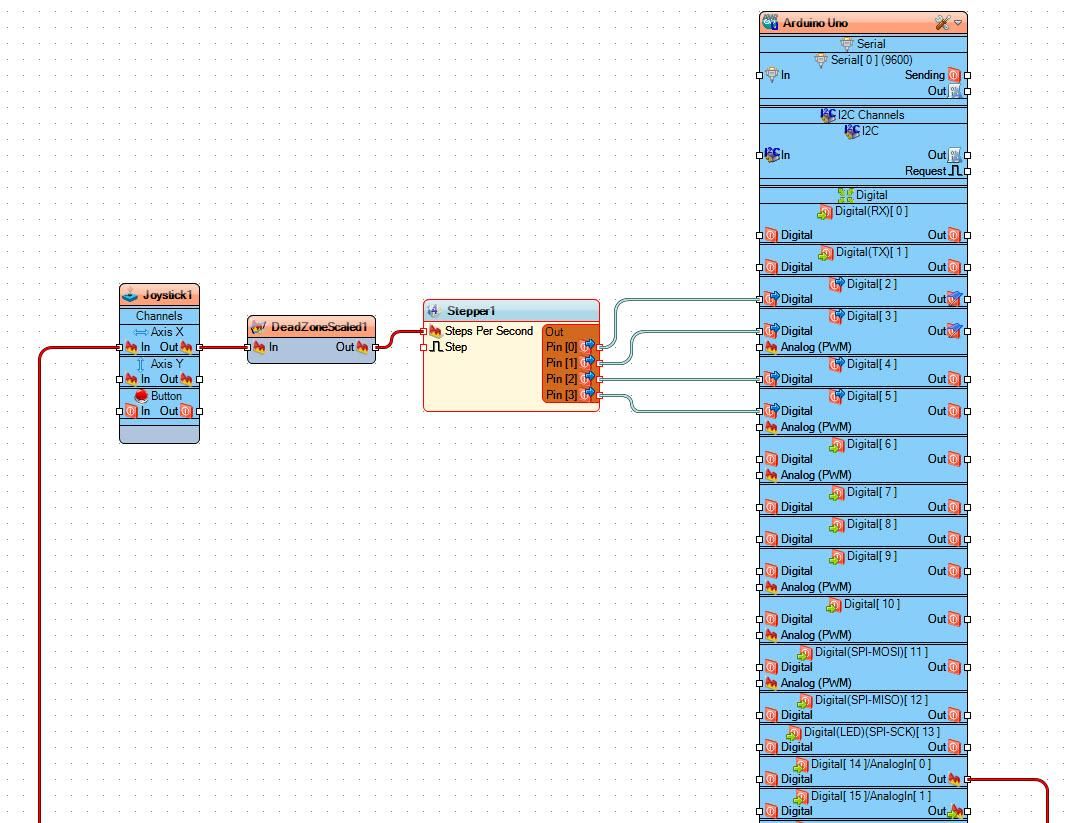
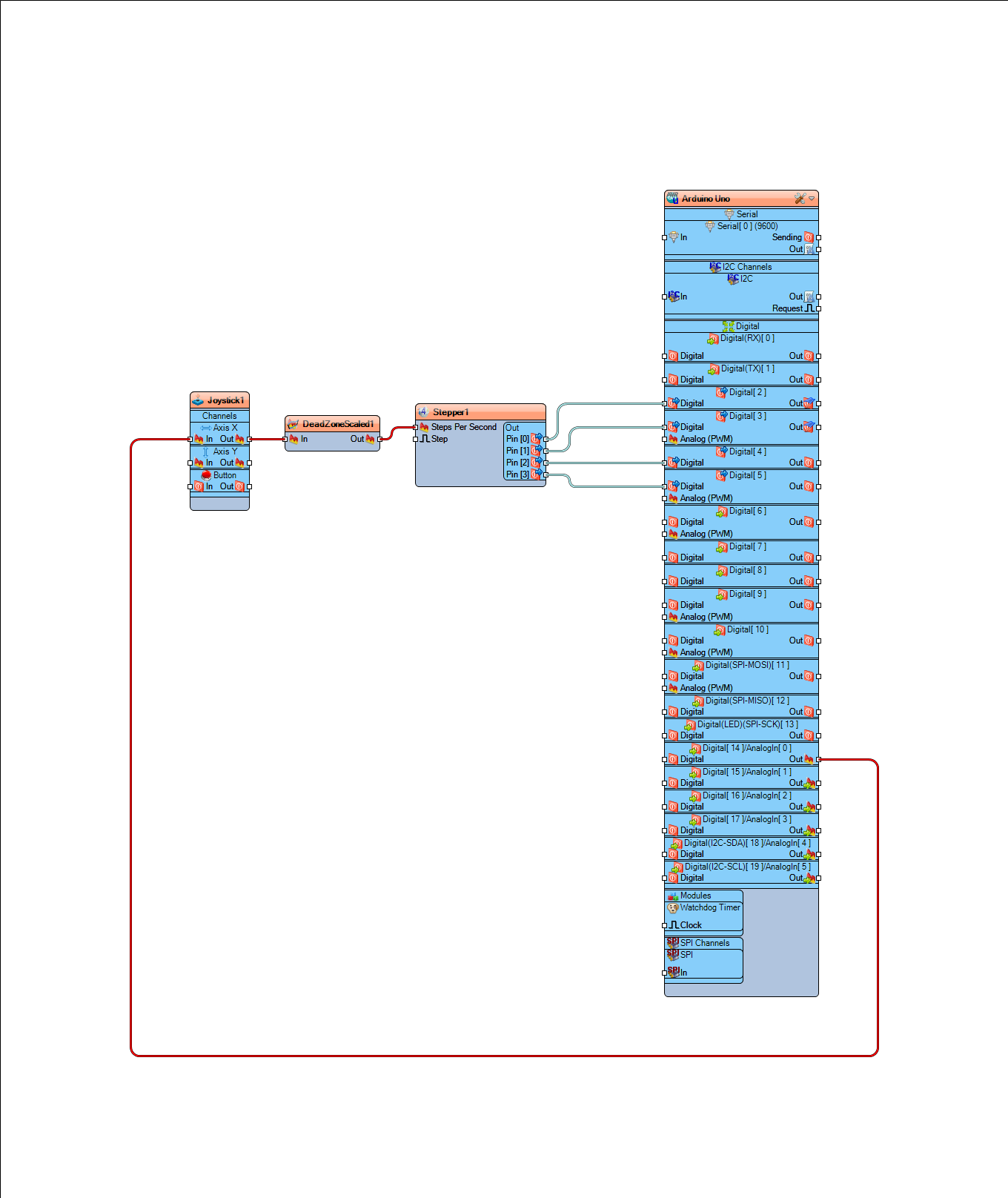
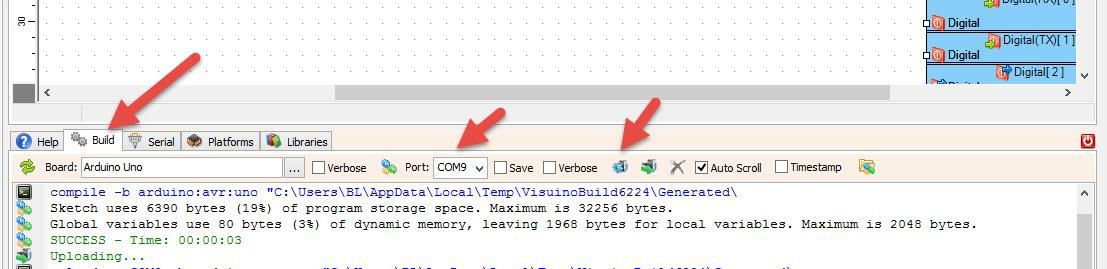
In Visuino, at the bottom click on the "Build" Tab, make sure the correct port is selected, then click on the "Compile/Build and Upload" button.
If you power the Arduino module and press the Joystick the Stepper Motor will start to rotate in forward direction or reversed direction.
Congratulations! You have completed your project with Visuino. Also attached is the Visuino project, that I created for this Project, you can download it here and open it in Visuino: https://www.visuino.eu
 step-joystick.zip




