

In this Tutorial we are going to display Temperature notification from the DHT11 sensor using the ATOM Matrix ESP32. If the temperature is between -10 & 15C a Blue LED will glow, if the temperature is between 15-28 a green LED will glow and if the temperature is between 28-35 a red LED will glow.
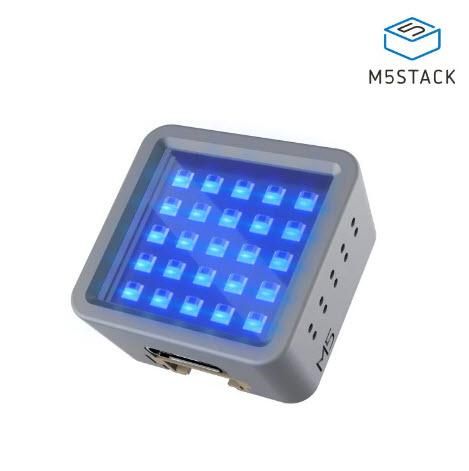
- ATOM Matrix ESP32 More info
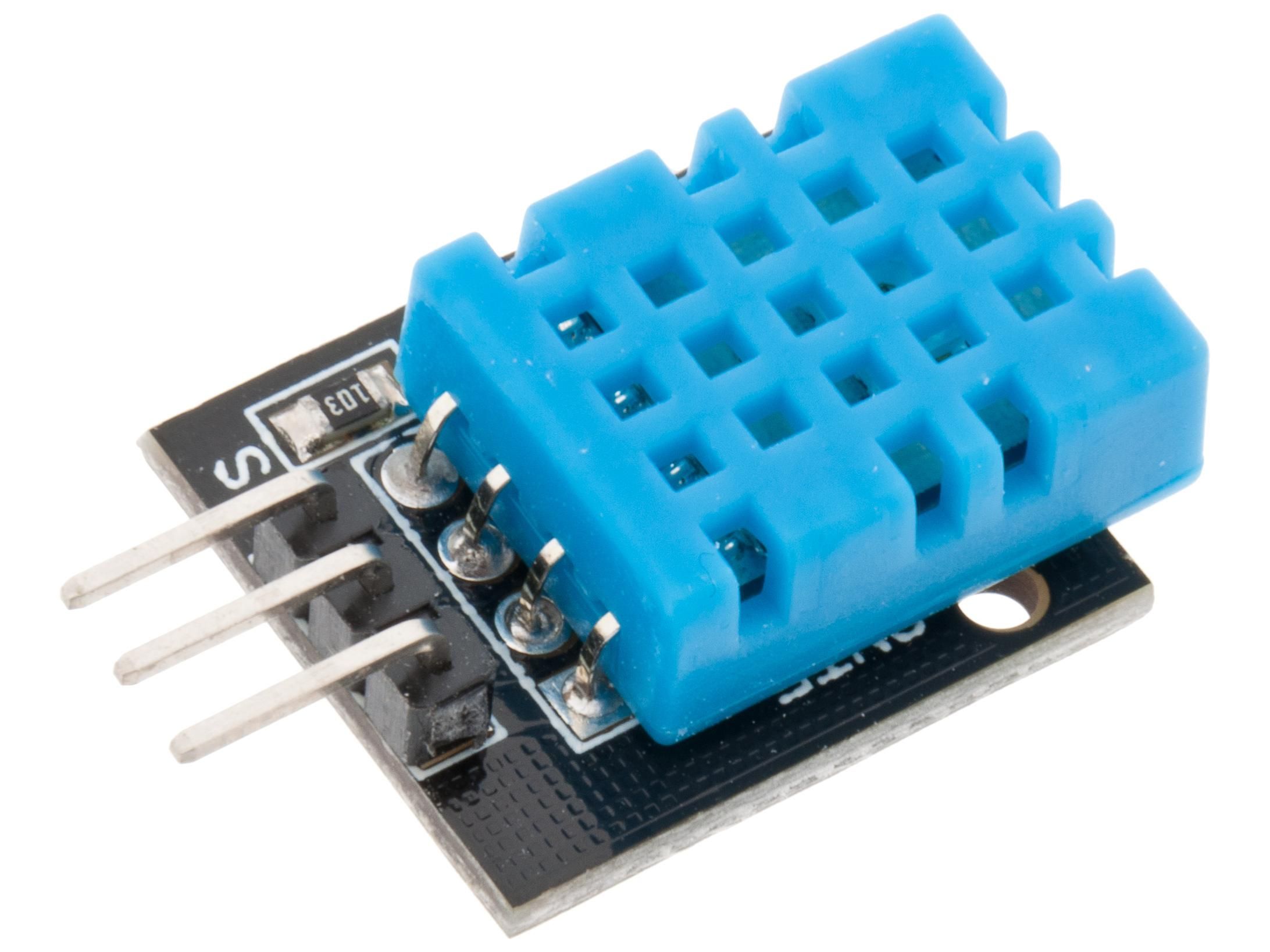
- DHT11 Temperature and Humidity sensor
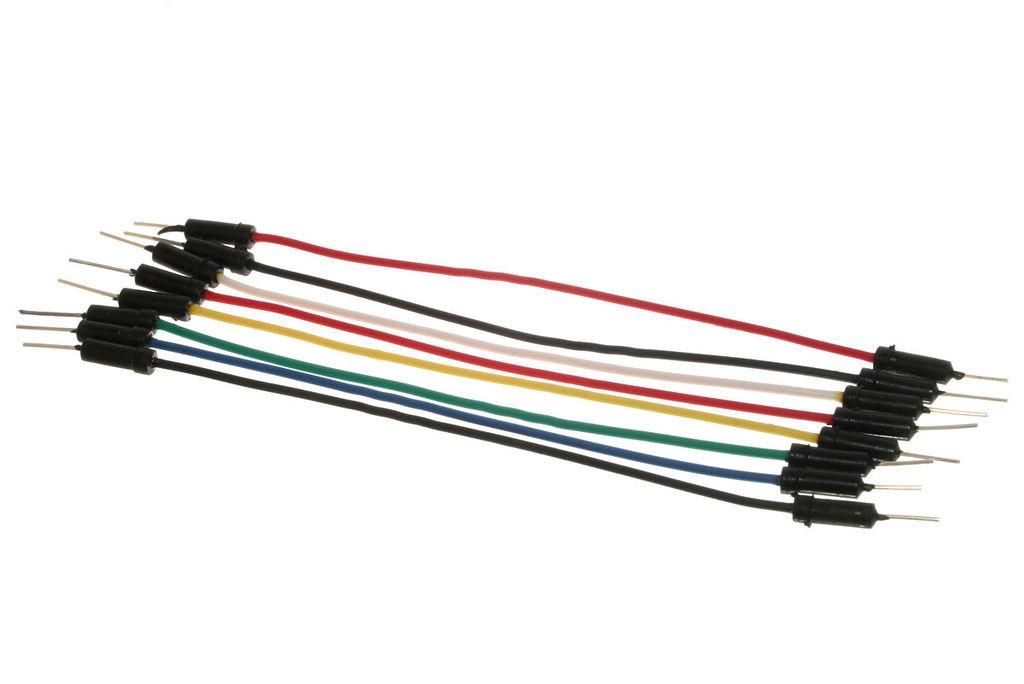
- Jumper wires
- Visuino program: Download Visuino
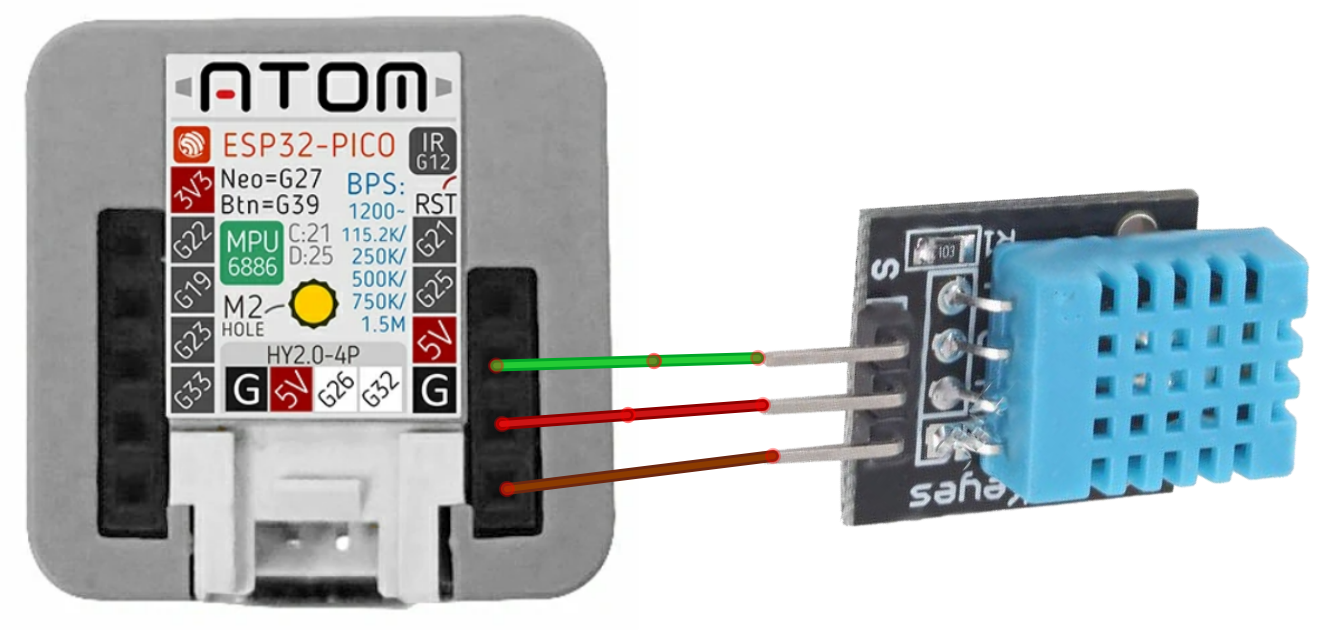
- Connect DHT11 sensor pin [VCC] to Atom Matrix pin [5V]
- Connect DHT11 sensor pin [GND] to Atom Matrix pin [GND]
- Connect DHT11 sensor pin [S] to Atom Matrix pin [G25]
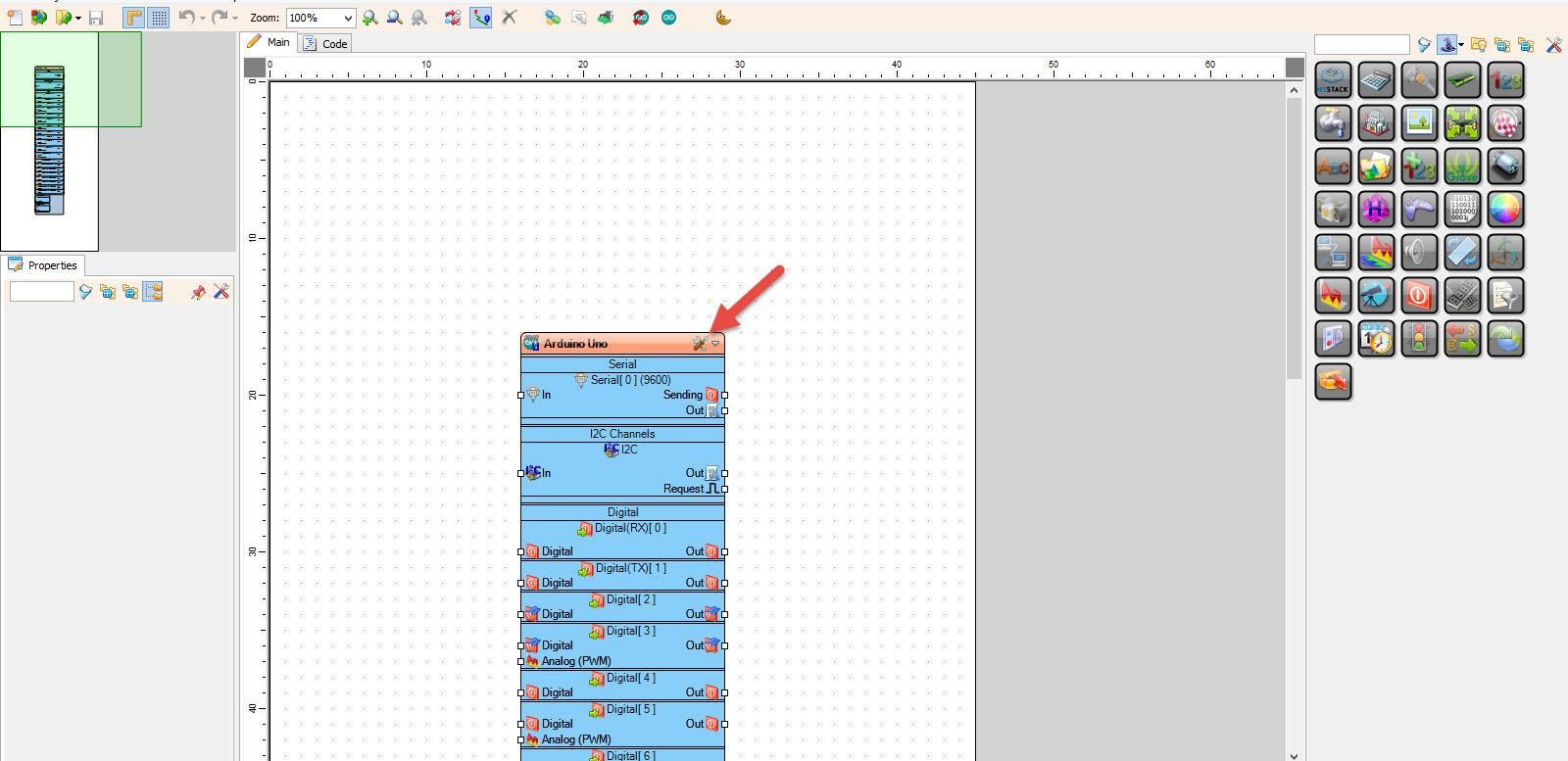
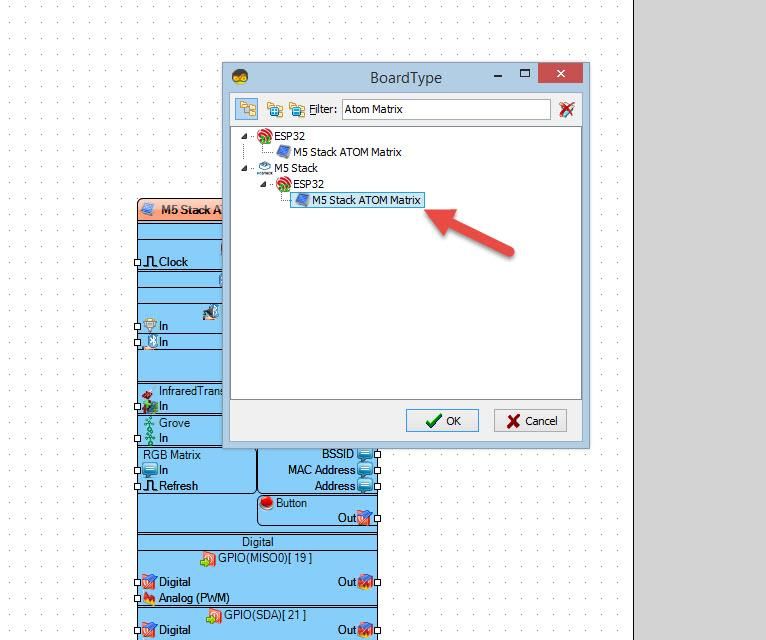
Start Visuino as shown in the first picture Click on the "Tools" button on the Arduino component (Picture 1) in Visuino When the dialog appears, select "Atom Matrix" as shown on Picture 2
- Add "DHT11" sensor component
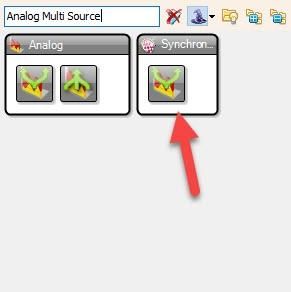
- Add "Analog Multi Source" component
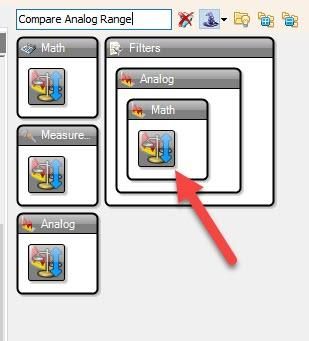
- Add 3X "Compare Analog Range" component
- Add "Color Value" component
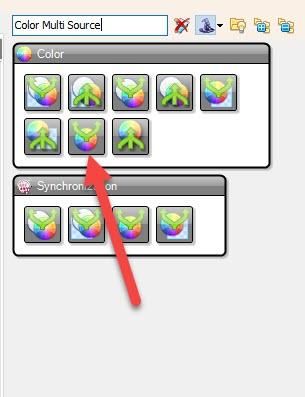
- Add "Color Multi Source" component
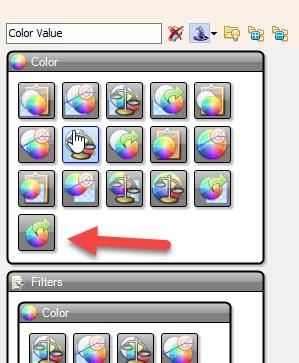
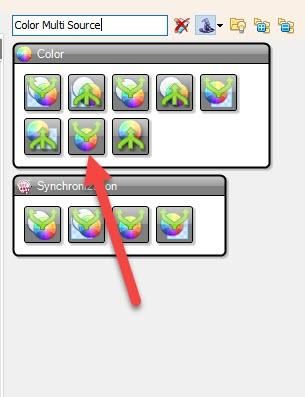
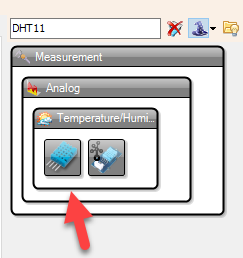
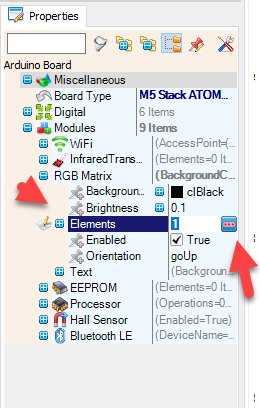
- Select "M5 Stack ATOM Matrix" board and in the properties window expand "Modules">"RGB Matrix">"Elements" and click on the 3 dots button
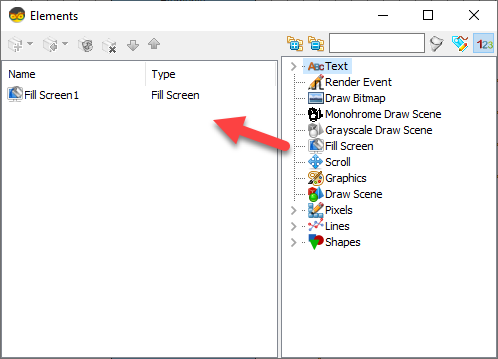
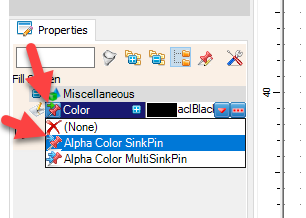
- In the "Elements" window drag "Fill Screen" to the left side and in the properties window select "Color" and click on the Pin Icon and select "Alpha Color SinkPin"
- Close the "Elements" window
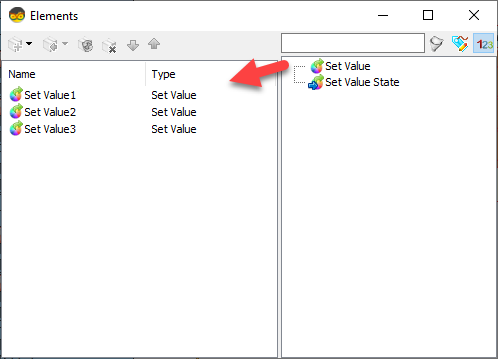
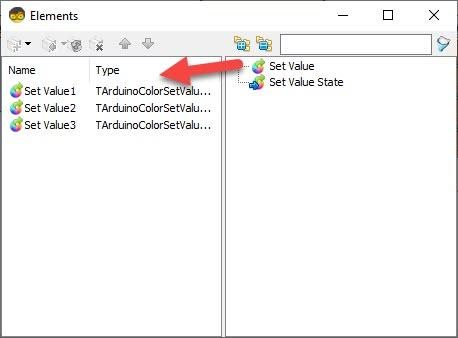
Double click on the "ColorValue1" and in the Elements window:
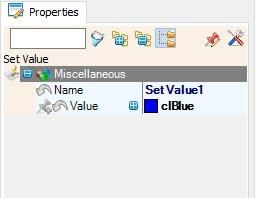
- Drag "Set Value" to the left side and in the properties window set "Color" to clBlue
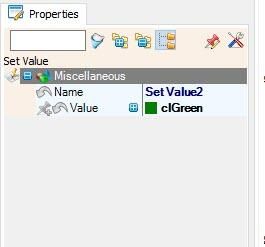
- Drag another "Set Value" to the left side and in the properties window set "Color" to clGreen
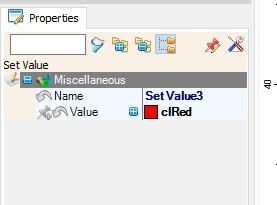
- Drag another "Set Value" to the left side and in the properties window set "Color" to clRed
- Close the Elements window
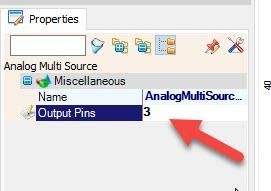
- Select "AnalogMultiSource1" and in the properties window set "Output Pins" to 3
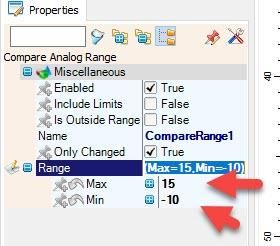
- Select "CompareRange1" and in the properties window set "Range" Max to 15 and Min to -10
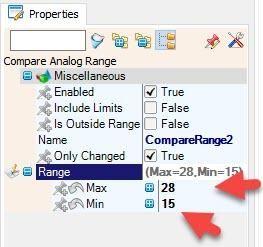
- Select "CompareRange2" and in the properties window set "Range" Max to 28 and Min to 15
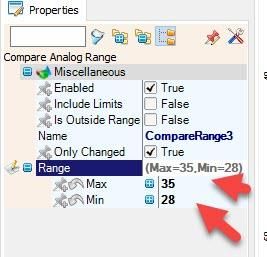
- Select "CompareRange3" and in the properties window set "Range" Max to 35 and Min to 28
- Connect "HumidityThermometer1" pin [Sensor] to "M5 Stack ATOM Matrix" pin [GPIO 25]
- Connect "HumidityThermometer1" pin [Temperature] to "AnalogMultiSource1" Pin [In]
- Connect "AnalogMultiSource1" pin [0] to "CompareRange1" Pin [In]
- Connect "AnalogMultiSource1" pin [1] to "CompareRange2" Pin [In]
- Connect "AnalogMultiSource1" pin [2] to "CompareRange3" Pin [In]
- Connect "CompareRange1" pin [Out] to "ColorValue1" > "Set Value1" Pin [In]
- Connect "CompareRange2" pin [Out] to "ColorValue1" > "Set Value2" Pin [In]
- Connect "CompareRange3" pin [Out] to "ColorValue1" > "Set Value3" Pin [In]
- Connect "ColorValue1" pin [Out] to "ColorMultiSource1" Pin [In]
- Connect "ColorMultiSource1" pin [0] to to "M5 Stack ATOM Matrix" > "Fill Screen1" pin [Color]
- Connect "ColorMultiSource1" pin [1] to to "M5 Stack ATOM Matrix" > "Fill Screen1" pin [Clock]
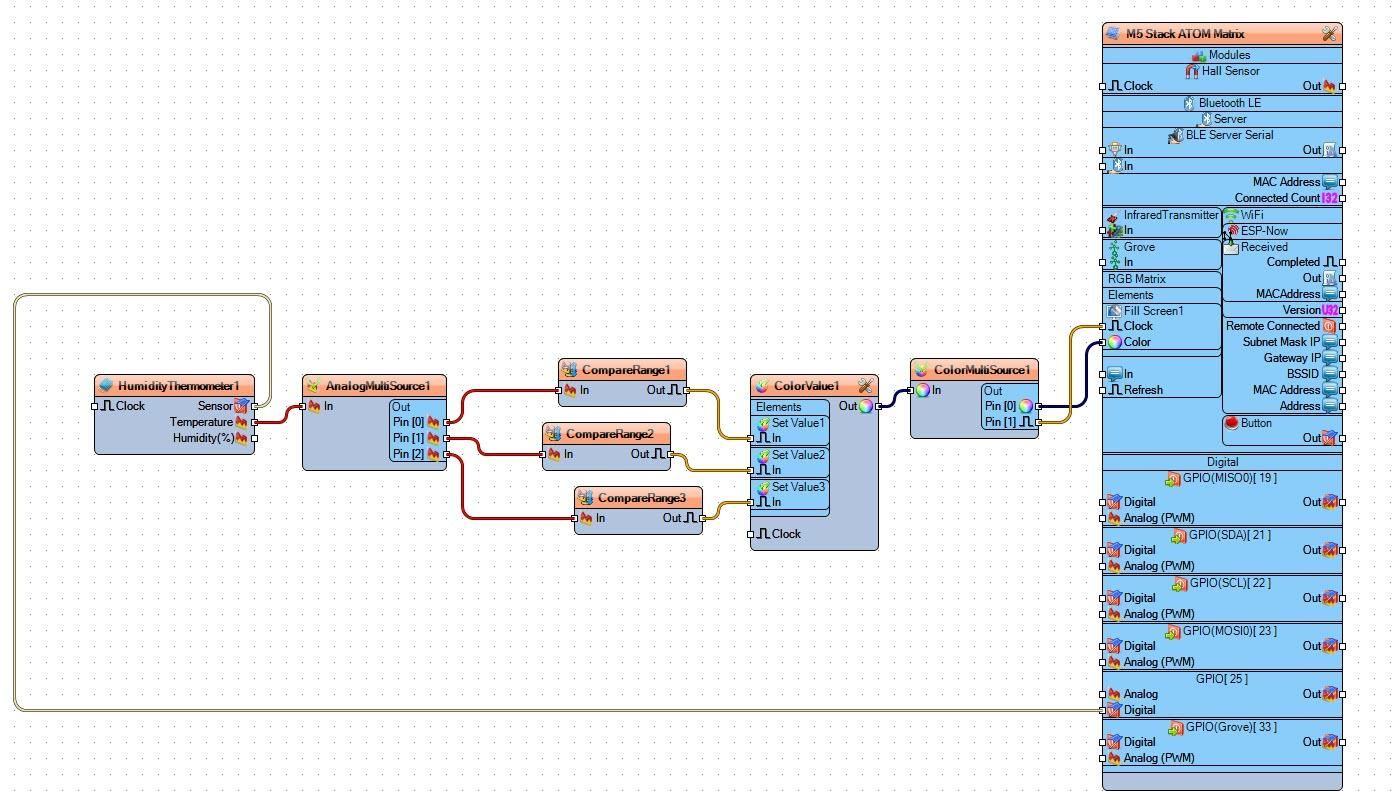
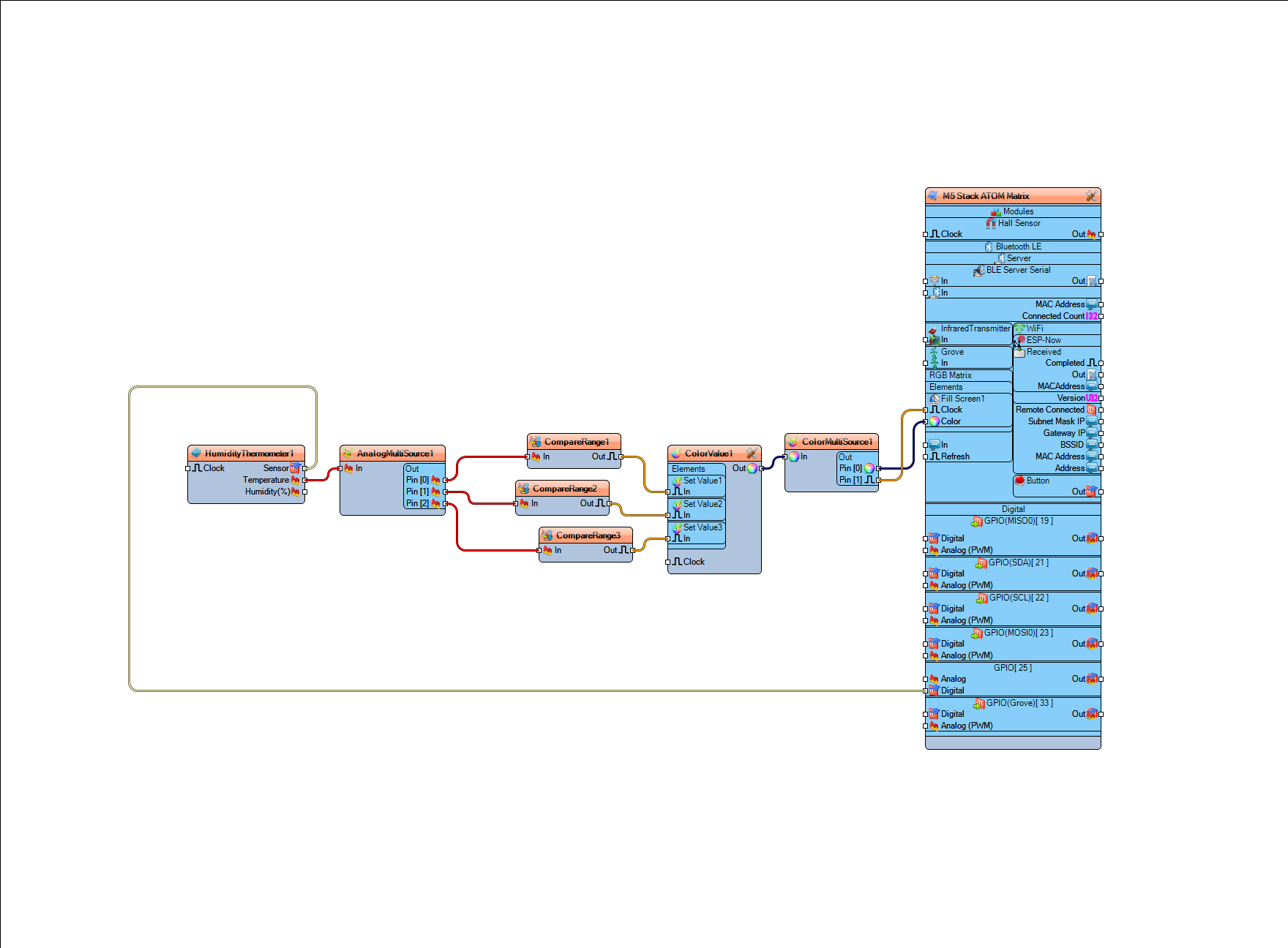
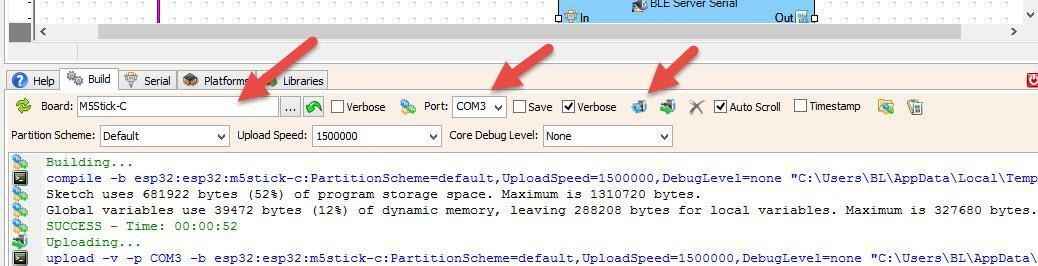
In Visuino, at the bottom click on the "Build" Tab, make sure the correct port is selected, then click on the "Compile/Build and Upload" button.
If you power the ATOM Matrix module The Display will start to show the Temperature as the Green color, Blue color or the Red color. If the temperature is between -10 & 15C a Blue LED will glow, if the temperature is between 15-28 a green LED will glow and if the temperature is between 28-35 a red LED will glow.
Congratulations! You have completed your project with Visuino. Also attached is the Visuino project, that I created for this tutorial, you can download it and open it in Visuino: https://www.visuino.eu
 ATOM-Temperature-DHT11.zip




