

In this tutorial you will learn how to use BH-1750 ambient light sensor with Visuino.
The values from the sensor will be displayed in Visuino Instrument for better visualization.
Watch the Video!
This project was made by Visuino user Rafał. Visit his youtube channel here: https://www.youtube.com/@Edappl/videos
- Arduino UNO or Arduino Mega (or any other board)
- BH-1750 ambient light sensor
- Visuino program: Download Visuino
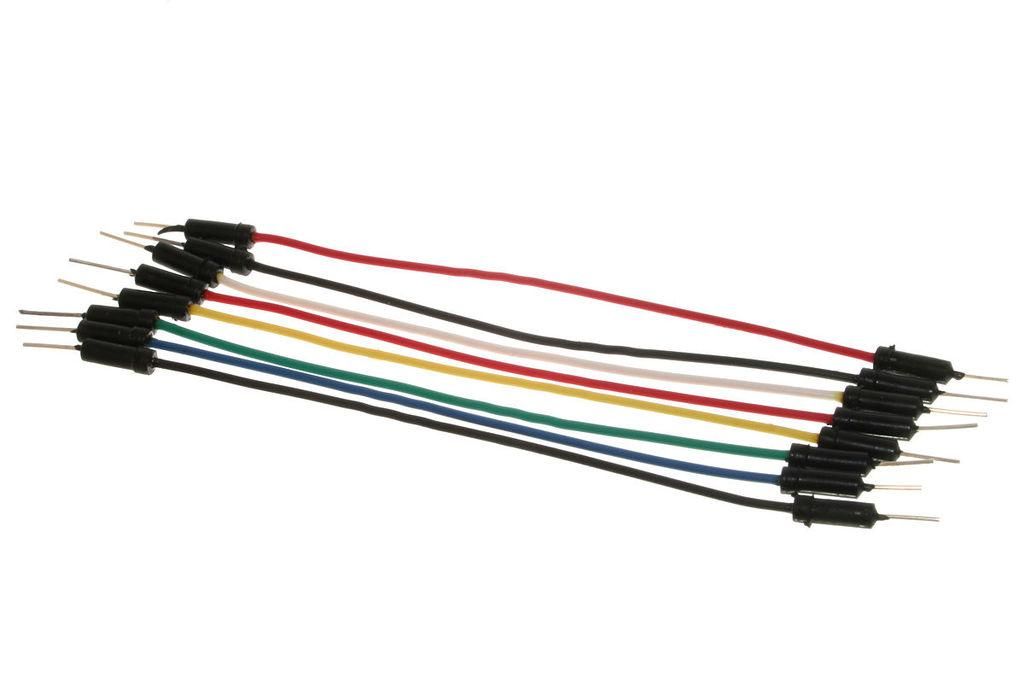
- Jumper wires
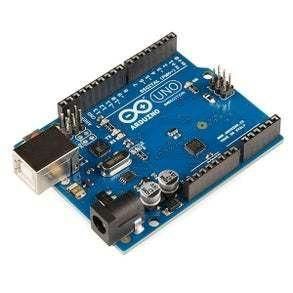
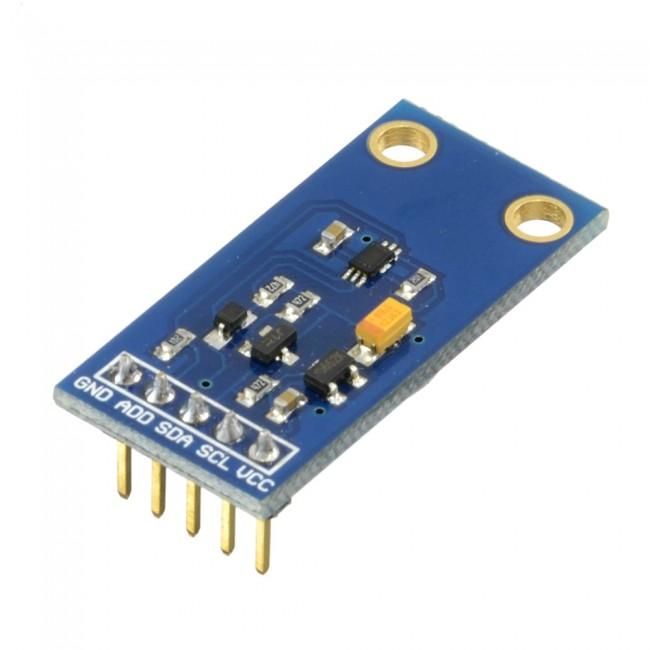
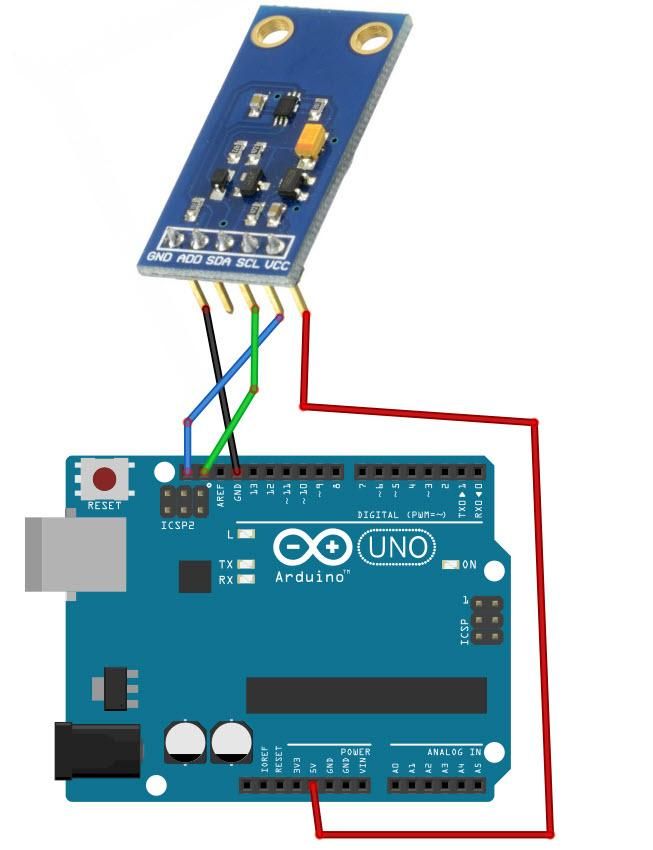
- Connect BH-1750 Sensor pin [SCL] to Arduino pin [SCL]
- Connect BH-1750 Sensor pin [SDA] to Arduino pin [SDA]
- Connect BH-1750 Sensor pin [VCC] to Arduino pin [5v]
- Connect BH-1750 Sensor pin [GND] to Arduino pin [GND]
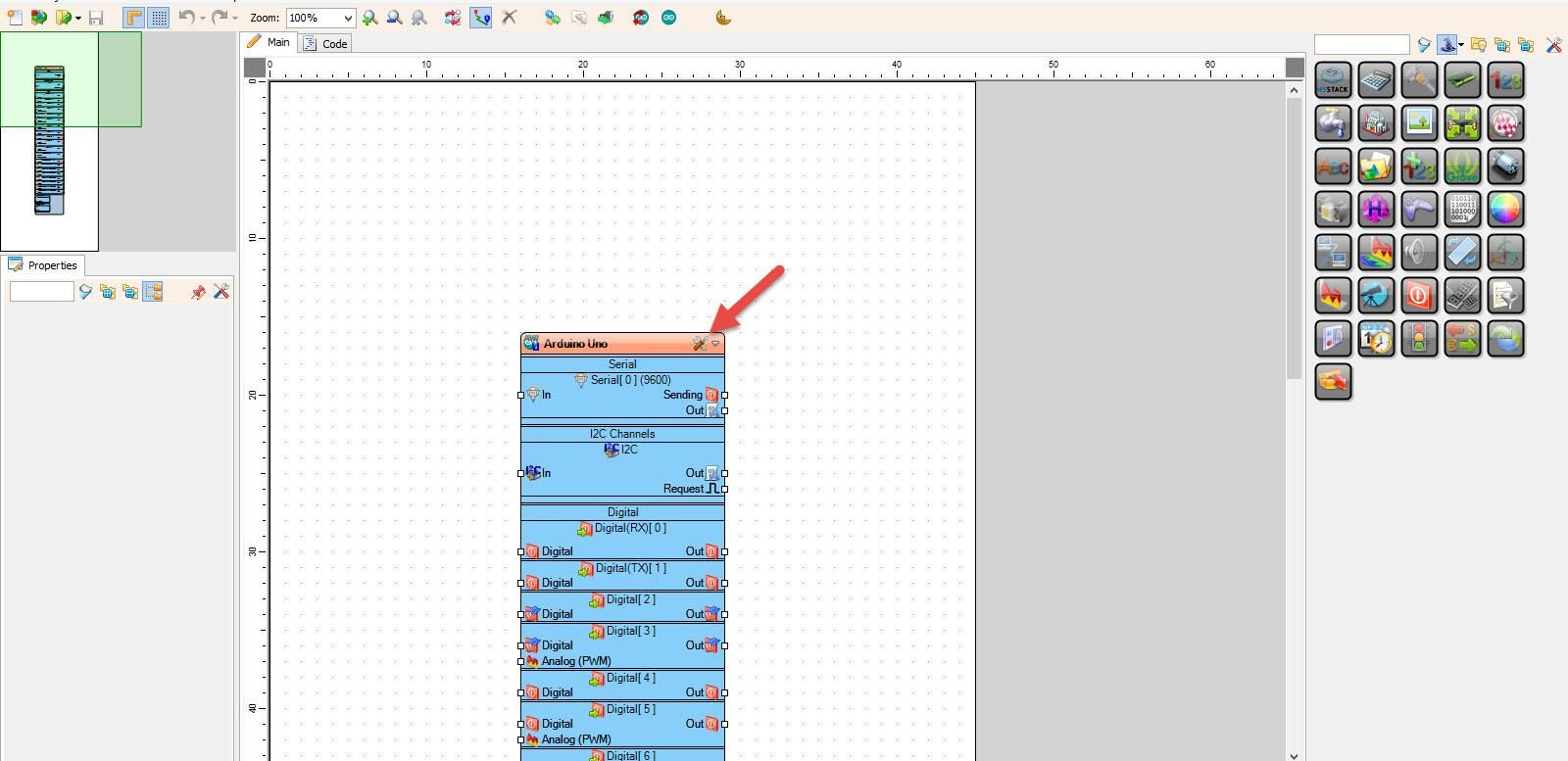
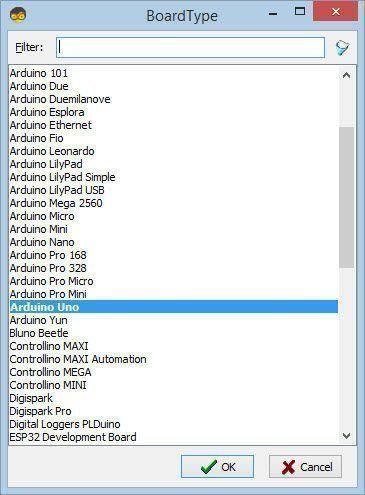
Start Visuino as shown in the first picture Click on the "Tools" button on the Arduino component (Picture 1) in Visuino When the dialog appears, select "Arduino UNO" as shown on Picture 2
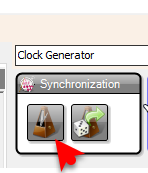
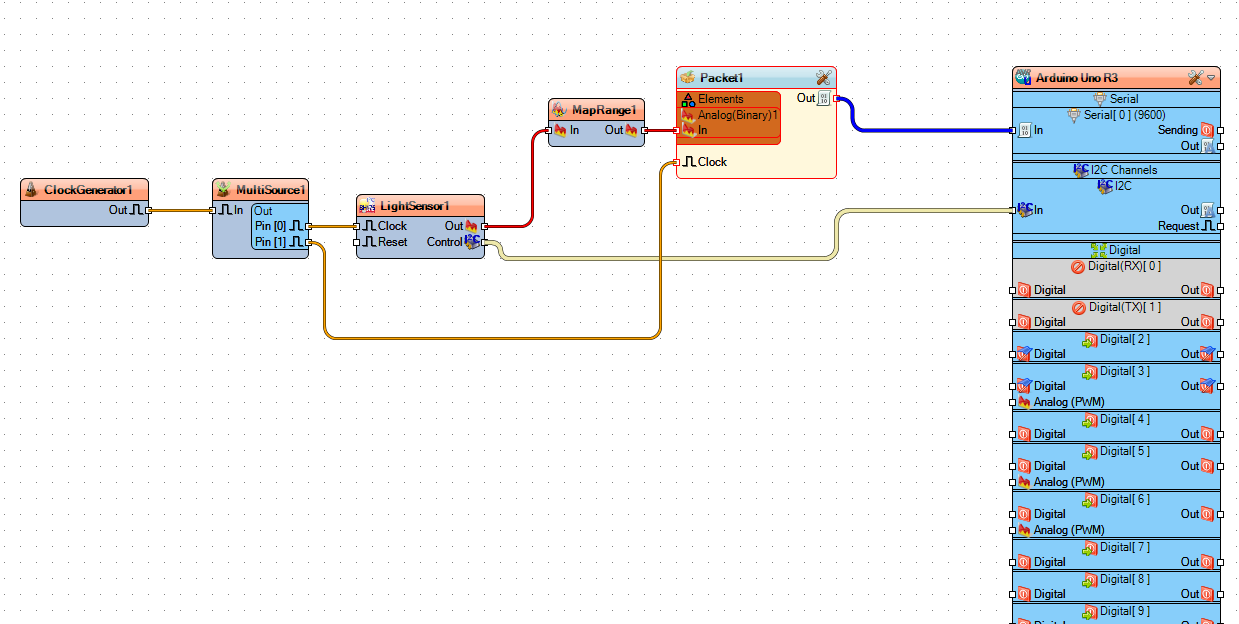
- Add "Clock Generator" component
- Add "Clock Multi Source" component
- Add "ROHM BH1750 Ambient Light Sensor (I2C)" component
- Add "Map Range Analog" component
- Add "Packet" component
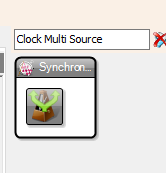
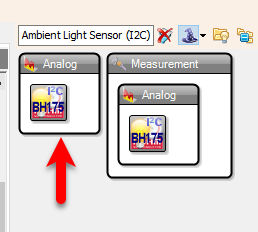
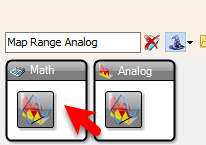
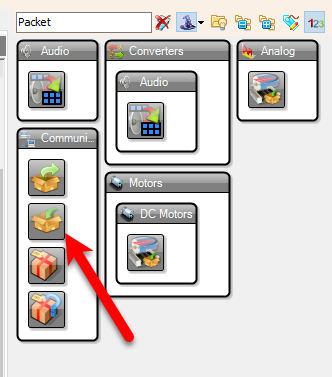
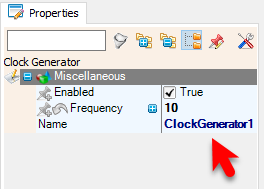
- Select "ClockGenerator1" and in the properties window set "Frequency" to 10
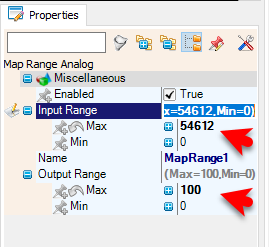
- Select "MapRange1" and in the properties window set "Input Range" > "Max" to 54612 and "Output Range" > "Max" to 100
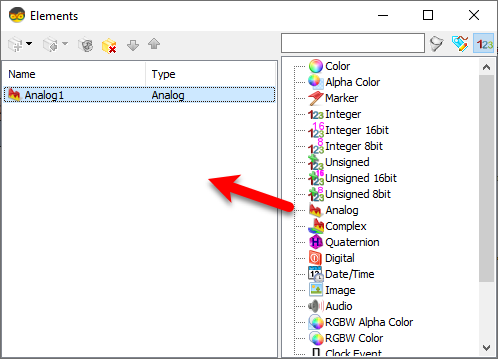
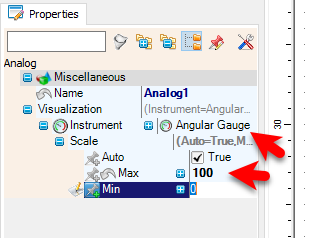
- Double click on "Packet1" and in the Elements window drag "Analog" to the left side and in the properties window set "Visualization" > "Scale" > "Max" to 100
Note: you can adjust the MapRange1 output Max and Packet1 Analog1 Scale Max according to your needs
also you can change the "Instrument" to something else
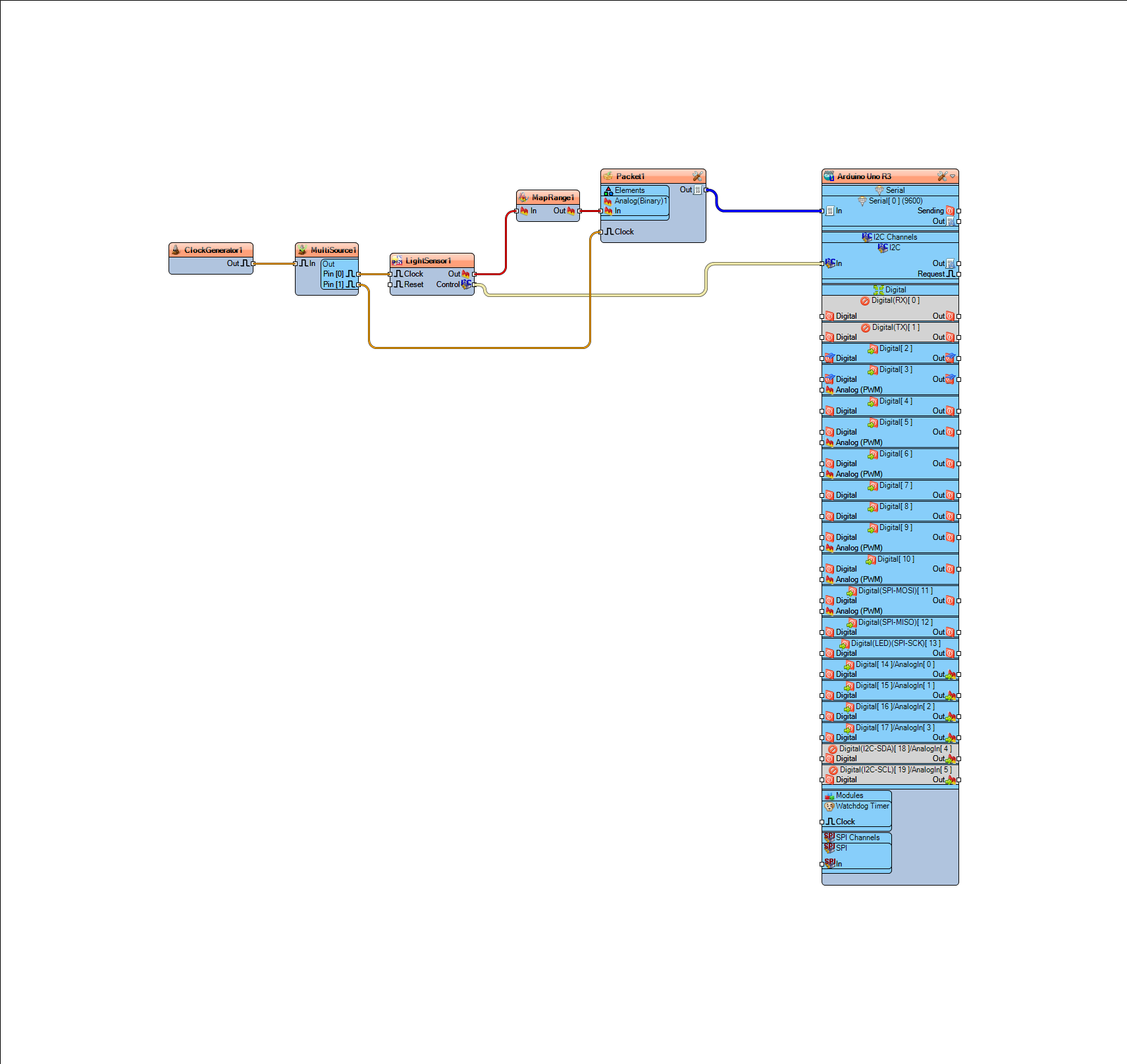
- Connect "ClockGenerator1" pin [Out] to "MultiSource1" pin [In]
- Connect "MultiSource1" pin [0] to "LightSensor1" pin [Clock]
- Connect "MultiSource1" pin [1] to "Packet1" pin [Clock]
- Connect "LightSensor1" pin [Out] to "MapRange1" pin [In]
- Connect "LightSensor1" pin [I2C] to Arduino pin [I2C]
- Connect "MapRange1" pin [Out] to "Packet1" > "Analog1" pin [In]
- Connect "Packet1" pin [Out] to Arduino serial 0 pin [In]
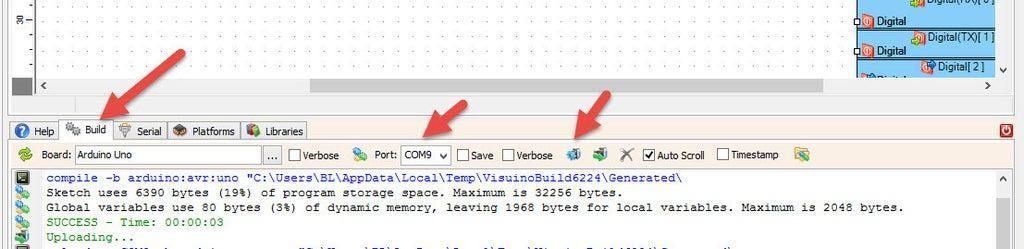
Generate, Compile, and Upload the Arduino Code
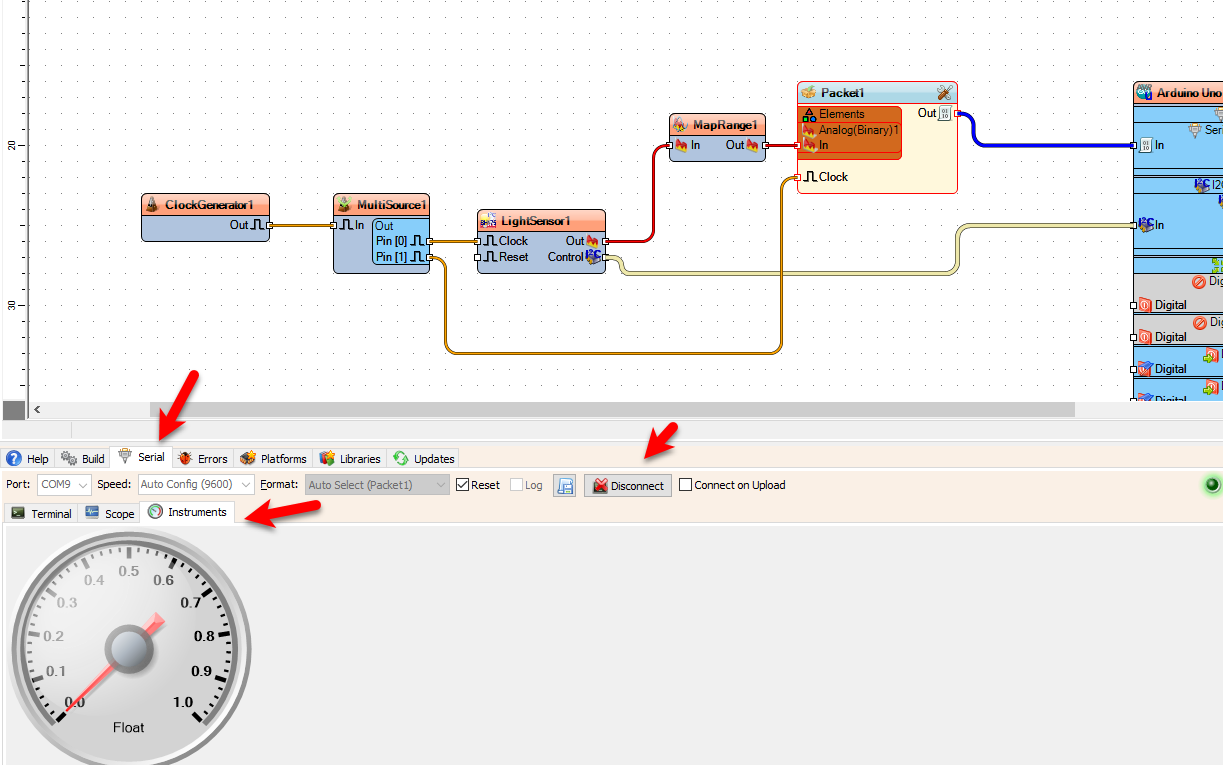
If you power the Arduino module, at the bottom click on the "Serial" Tab > "Instruments", make sure you selected the correct port and click "Connect" button. You should start to see the values from the sensor.
Since the "ClockGenerator1" frequency is 10Hz we are getting values 10x every second, you can adjust the Frequency of the "ClockGenerator1" in the properties window.
Congratulations! You have completed your project with Visuino. Also attached is the Visuino project, that I created for this Instructable, you can download it here and open it in Visuino: https://www.visuino.eu
 BH1750-Instruments.zip




