

In this tutorial we will learn how to use 4 Channel Arduino Relay with Arduino and Visuino and controlling it with 4 buttons.
Watch the Video!
- Arduino UNO (Or any other Board)
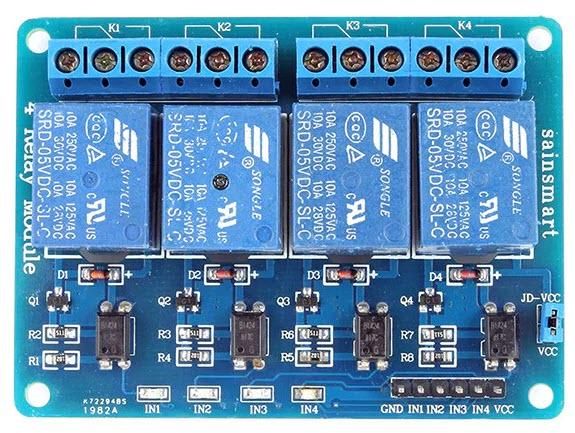
- 4 Channel Arduino Relay
- 4 button modules
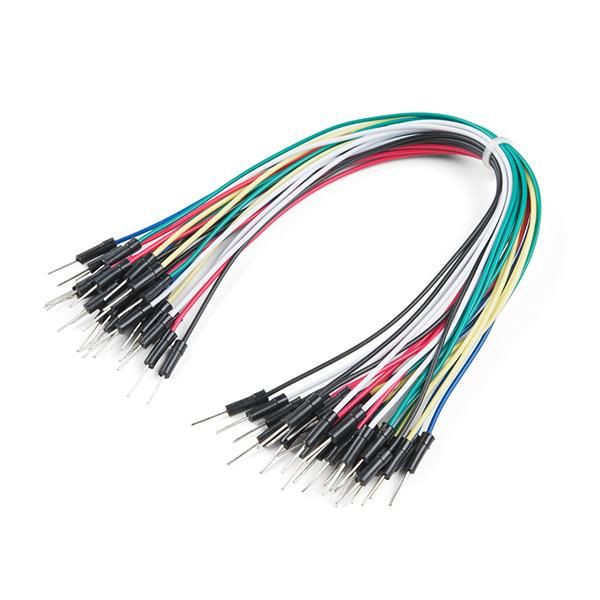
- Jumper wires
- Visuino program: Download Visuino

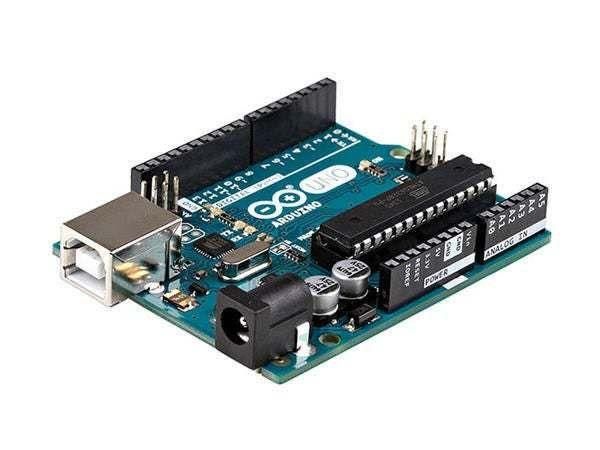
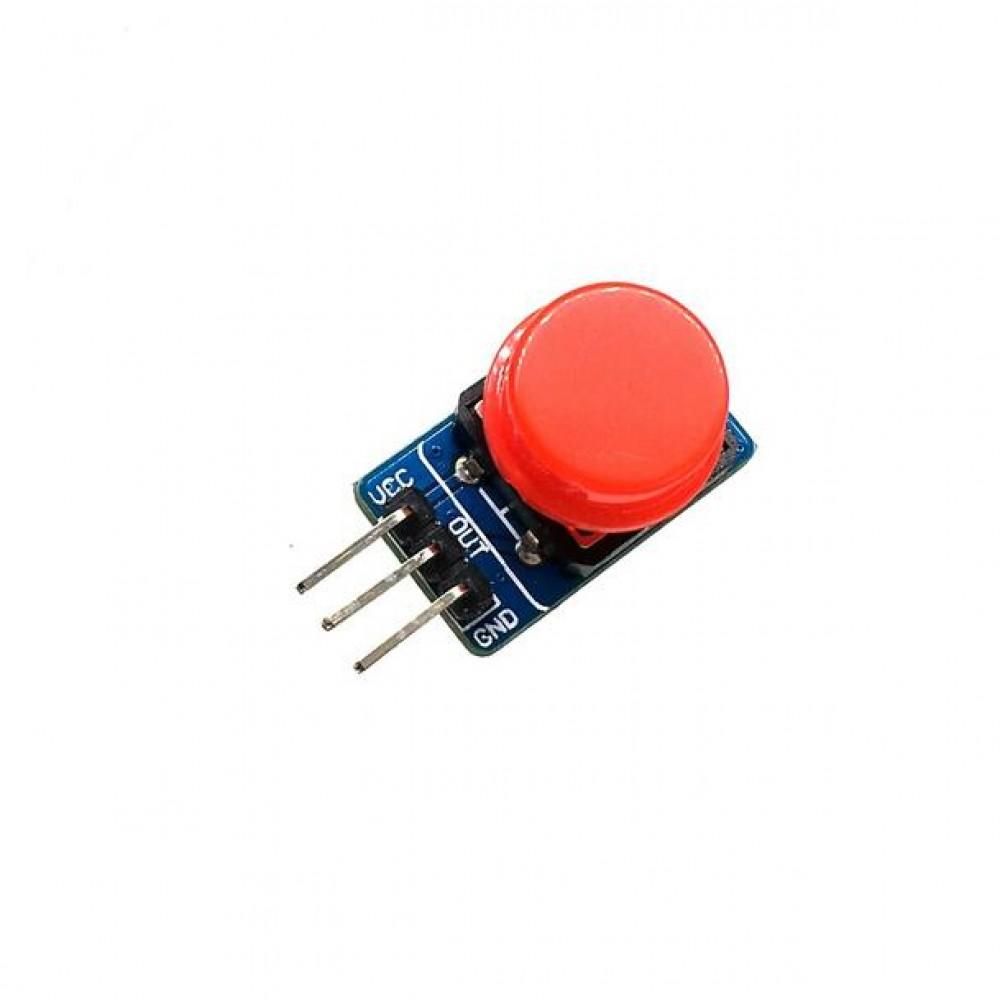
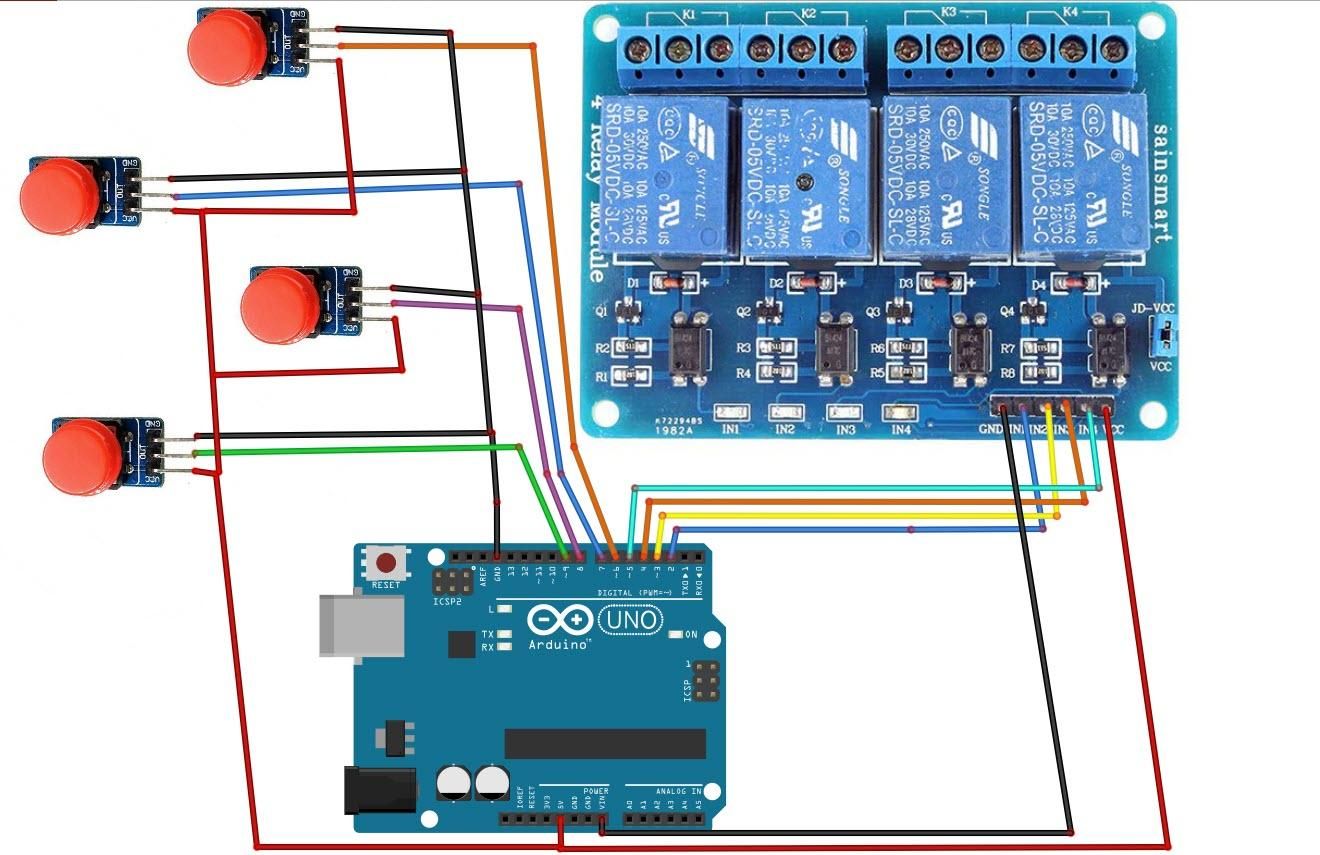
- Connect Arduino pin [GND] to each Button pin[GND]
- Connect Arduino pin [VCC] to each Button pin[VCC]
- Connect Arduino digital pin [6] to Button1 pin[Out]
- Connect Arduino digital pin [7] to Button2 pin[Out]
- Connect Arduino digital pin [8] to Button3 pin[Out]
- Connect Arduino digital pin [9] to Button4 pin[Out]
- Connect Arduino pin [GND] to Relay pin[GND]
- Connect Arduino pin [VCC] to Relay pin[VCC]
- Connect Arduino digital pin [2] to Relay pin[IN1]
- Connect Arduino digital pin [3] to Relay pin[IN2]
- Connect Arduino digital pin [4] to Relay pin[IN3]
- Connect Arduino digital pin [5] to Relay pin[IN4]
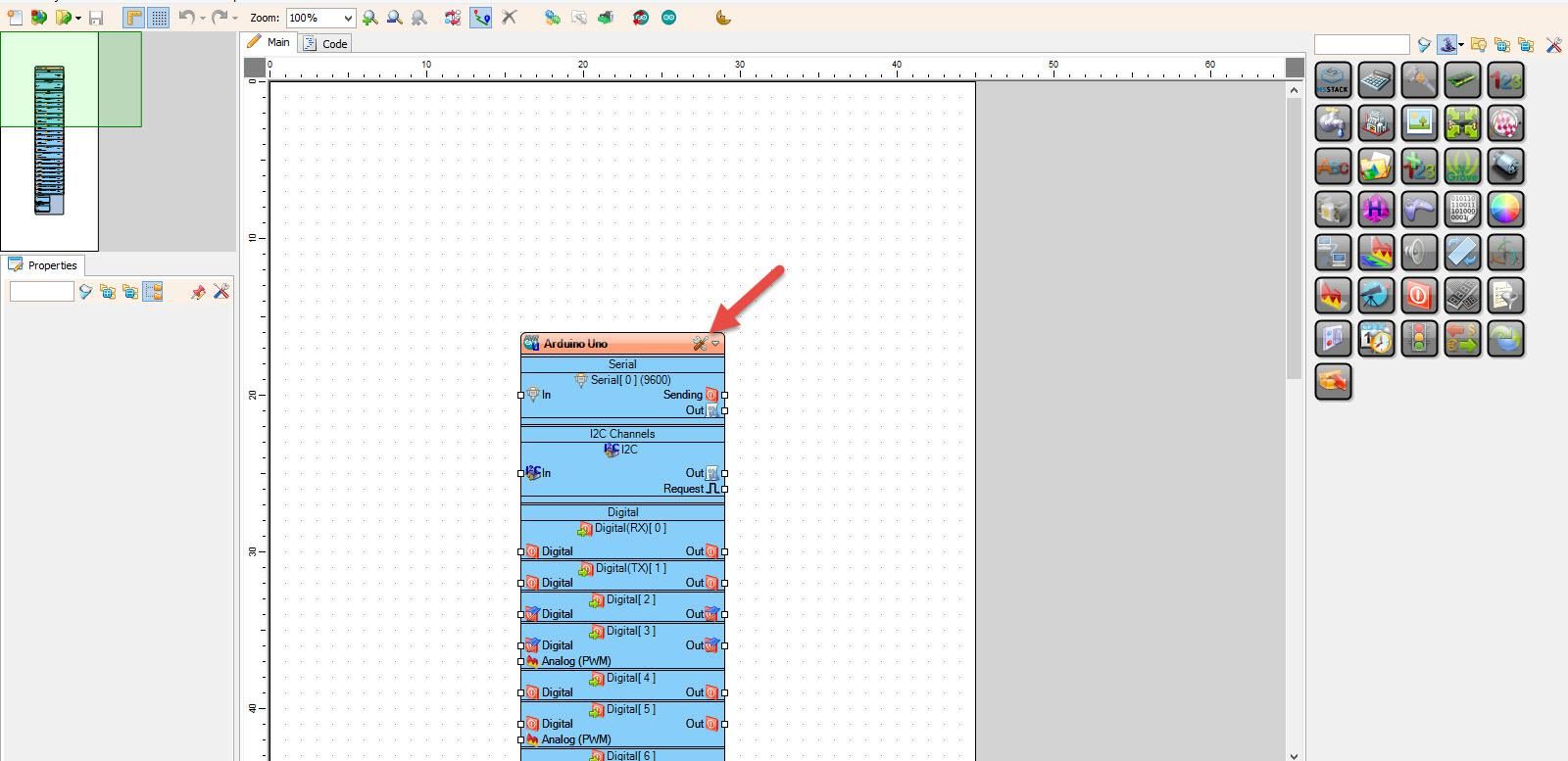
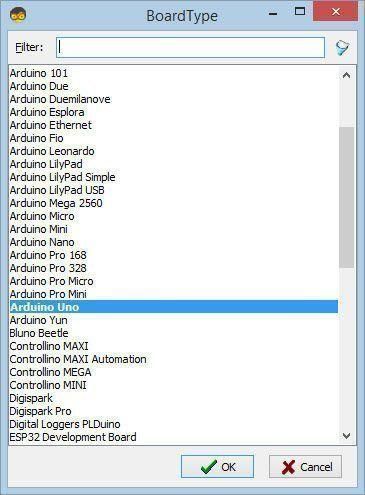
Start Visuino as shown in the first picture Click on the "Tools" button on the Arduino component (Picture 1) in Visuino When the dialog appears, select "Arduino UNO" as shown on Picture 2
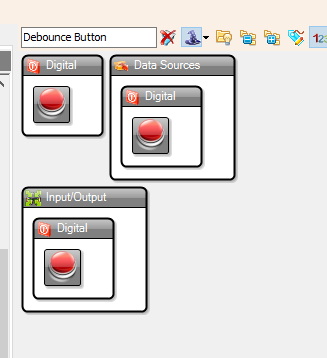
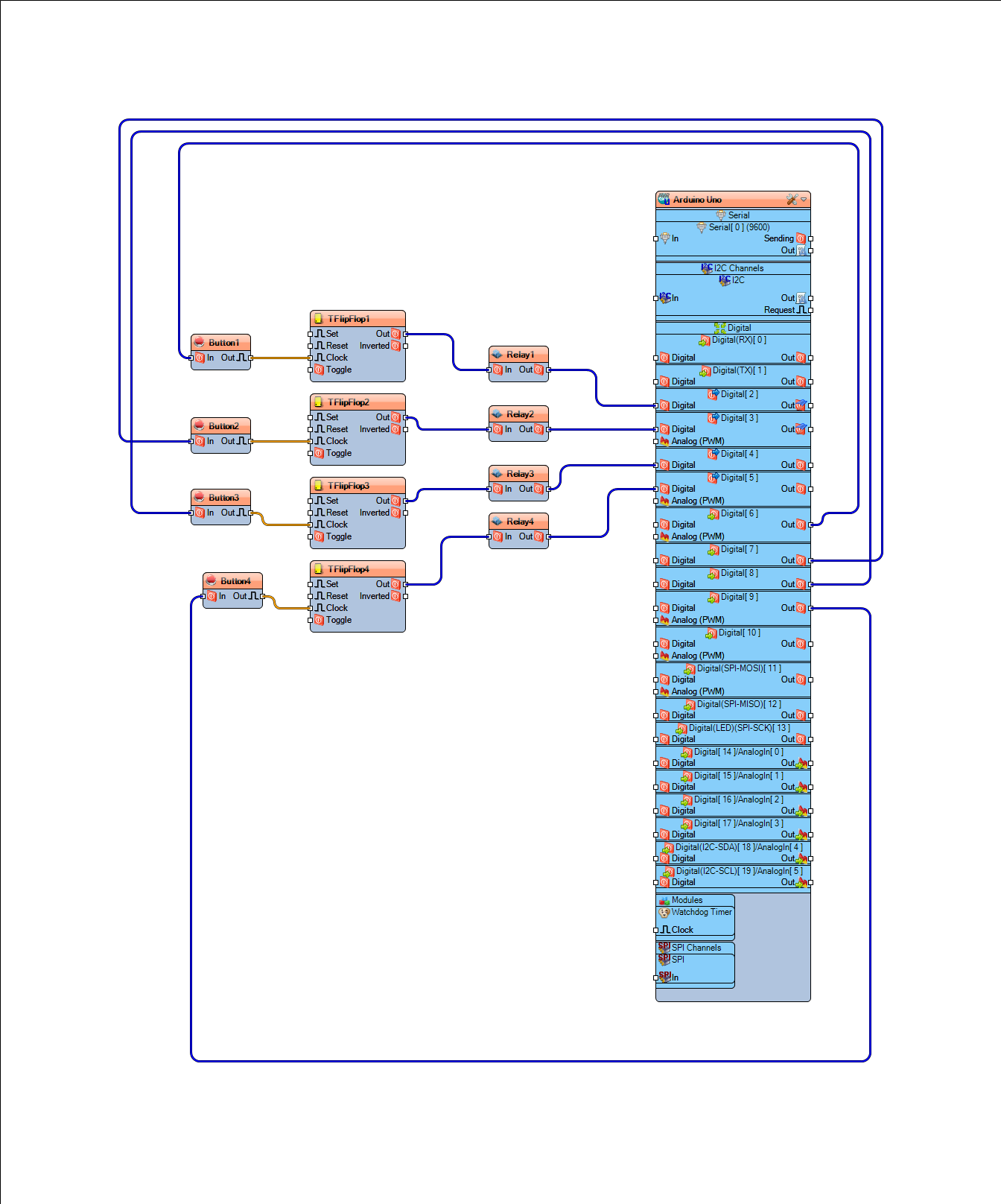
- Add 4X "Debounce Button" component
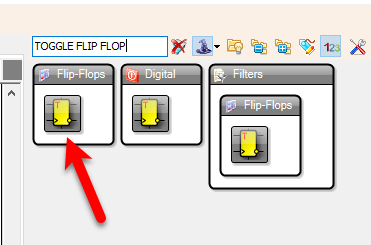
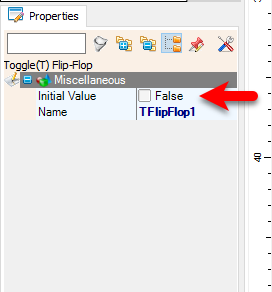
- Add 4X "Toggle Flip Flop" component, this component is used to Switch the relay On or Off, by default the "Initial Value" is False, you can change it to True, this will set the Relay On at the start
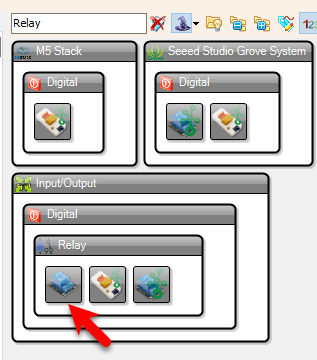
- Add 4X "Relay" component, this component is not necessary because it does not have any function, it is used only for easier visualization of the project
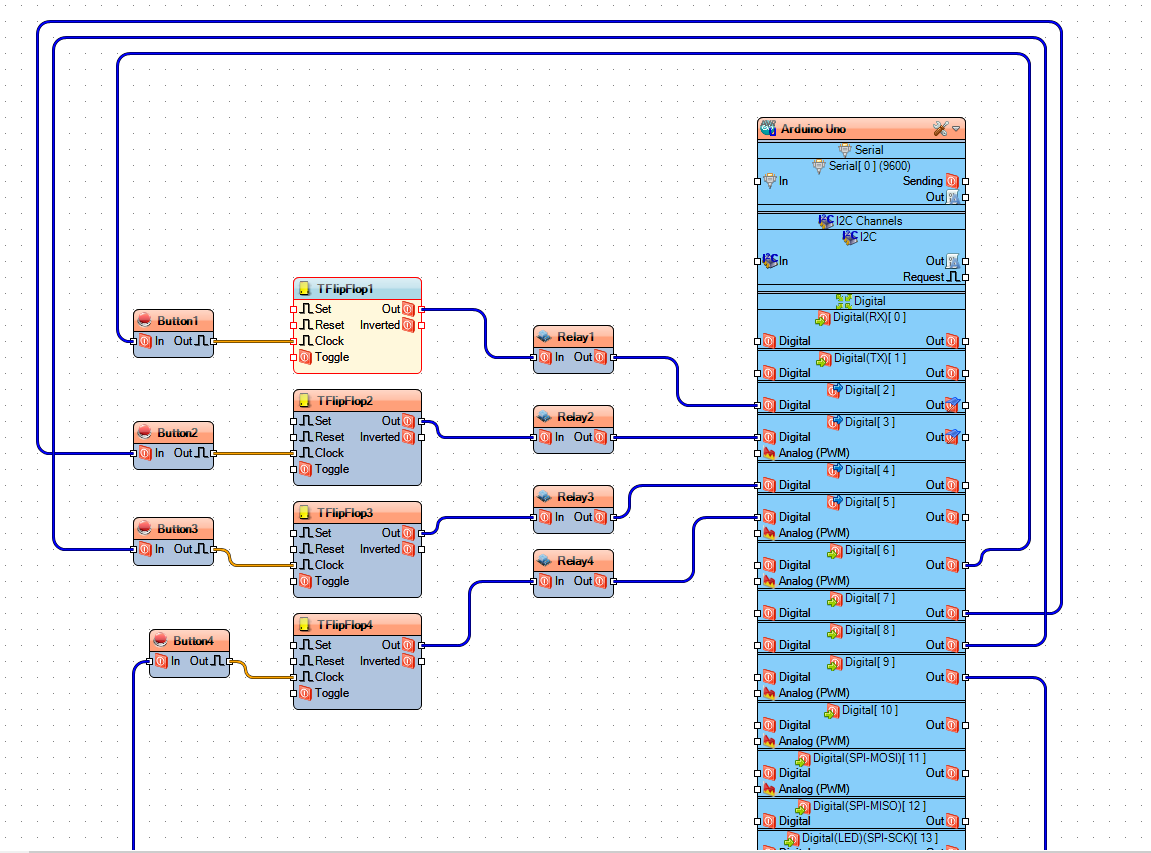
- Connect Arduino digital pin [6] to "Button1" pin [In]
- Connect Arduino digital pin [7] to "Button2" pin [In]
- Connect Arduino digital pin [8] to "Button3 pin [In]
- Connect Arduino digital pin [9] to "Button4" pin [In]
- Connect "Button1" digital pin [Out] to "TFlipFlop1"pin [Clock]
- Connect "Button2" digital pin [Out] to "TFlipFlop2"pin [Clock]
- Connect "Button3" digital pin [Out] to "TFlipFlop3"pin [Clock]
- Connect "Button4" digital pin [Out] to "TFlipFlop4"pin [Clock]
- Connect "TFlipFlop1" digital pin [Out] to "Relay1"pin [In]
- Connect "TFlipFlop2" digital pin [Out] to "Relay2"pin [In]
- Connect "TFlipFlop3" digital pin [Out] to "Relay3"pin [In]
- Connect "TFlipFlop4" digital pin [Out] to "Relay4"pin [In]
- Connect "Relay1" pin [Out] to Arduino digital pin [2]
- Connect "Relay2" pin [Out] to Arduino digital pin [3]
- Connect "Relay3" pin [Out] to Arduino digital pin [4]
- Connect "Relay4" pin [Out] to Arduino digital pin [5]
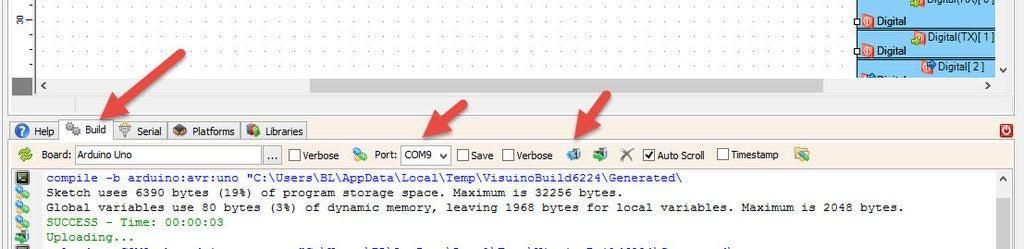
In Visuino, at the bottom click on the "Build" Tab, make sure the correct port is selected, then click on the "Compile/Build and Upload" button.
If you power the Arduino module and press the button the Relay will switch ON or OFF.
Congratulations! You have completed your project with Visuino. Also attached is the Visuino project, that I created for this Instructable, you can download it here and open it in Visuino: https://www.visuino.eu
 Relay-Buttons.zip




